

What is Agent Office 3D?
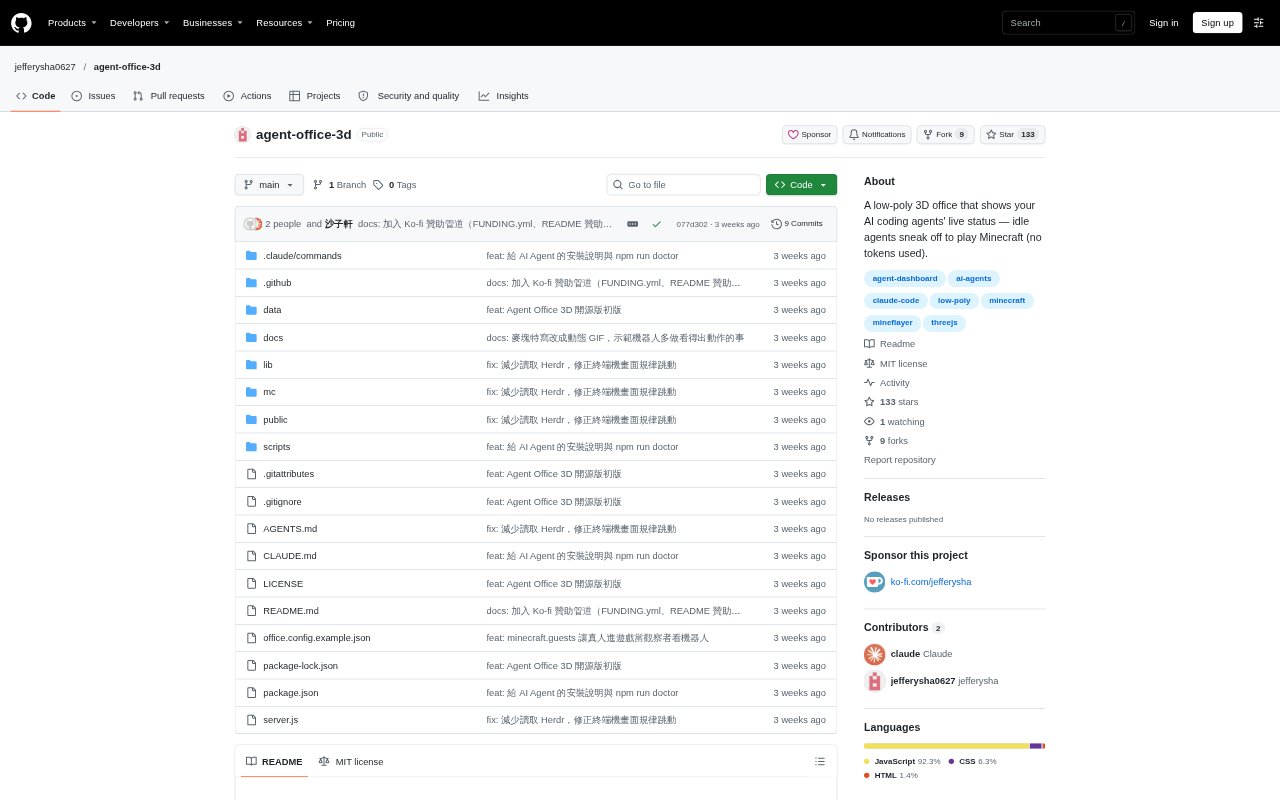
Agent Office 3D is a locally run 3D office for viewing the activity of AI coding agents. It displays agents as staff, with status indicators for working, idle, finished, or needing confirmation, and can show recent terminal output in read-only panels. Teams can try the rotating demo without connecting an agent, or connect agents through Herdr. An optional Minecraft mode gives idle agents in-world activities to display on their desk monitors.
Agent Office 3D Features:
Live Agent Status: Each agent has a seat and a status indicator for working, idle, finished and waiting, or needing confirmation.
Terminal Preview: Selecting a staff member shows recent terminal output, but the office cannot send commands or confirm prompts.
Idle Activities: Idle staff can make coffee, use a treadmill, nap, play built-in mini-games, or take a Minecraft break.
Bulletin Board: The board displays annual goals, KPIs, weekly priorities, cash flow and a to-do list with checkable items.
Project Bookshelf: The bookshelf opens project folders so users can view Markdown files and screenshots in read-only mode.
Local Minecraft: With the optional Minecraft setup, each staff member gets a Mineflayer bot and a first-person game view on their monitor.
Agent Office 3D Benefits:
Quick Overview: A shared visual office makes it easier to scan agent activity without opening each agent's terminal individually.
Visible Blockers: A distinct confirmation status helps users notice when an agent is waiting for permission instead of working.
Safer Observation: Read-only terminal and project views let users inspect activity and files without issuing commands from the office.
Useful Demo: Rotating sample statuses let a team explore the interface before connecting real coding agents.
Organized Context: Keeping priorities, tasks and project documents in the office makes related work information easier to find.
Use Cases:
Agent Monitoring: Check a local office view to see which connected coding agents are working, idle, finished, or waiting for confirmation.
Prompt Follow-Up: Use the status indicators to spot an agent that needs permission, then handle the prompt in its own terminal.
Terminal Review: Select an agent to inspect recent terminal output while keeping command entry in the agent's normal interface.
Project Reference: Open project folders and task files from the office when checking documentation or screenshots alongside agent activity.
Demo Recording: Run the demo mode, optionally with all sample staff idle, to show the office and Minecraft activity in a recording.