

What is Agent-screenplay?
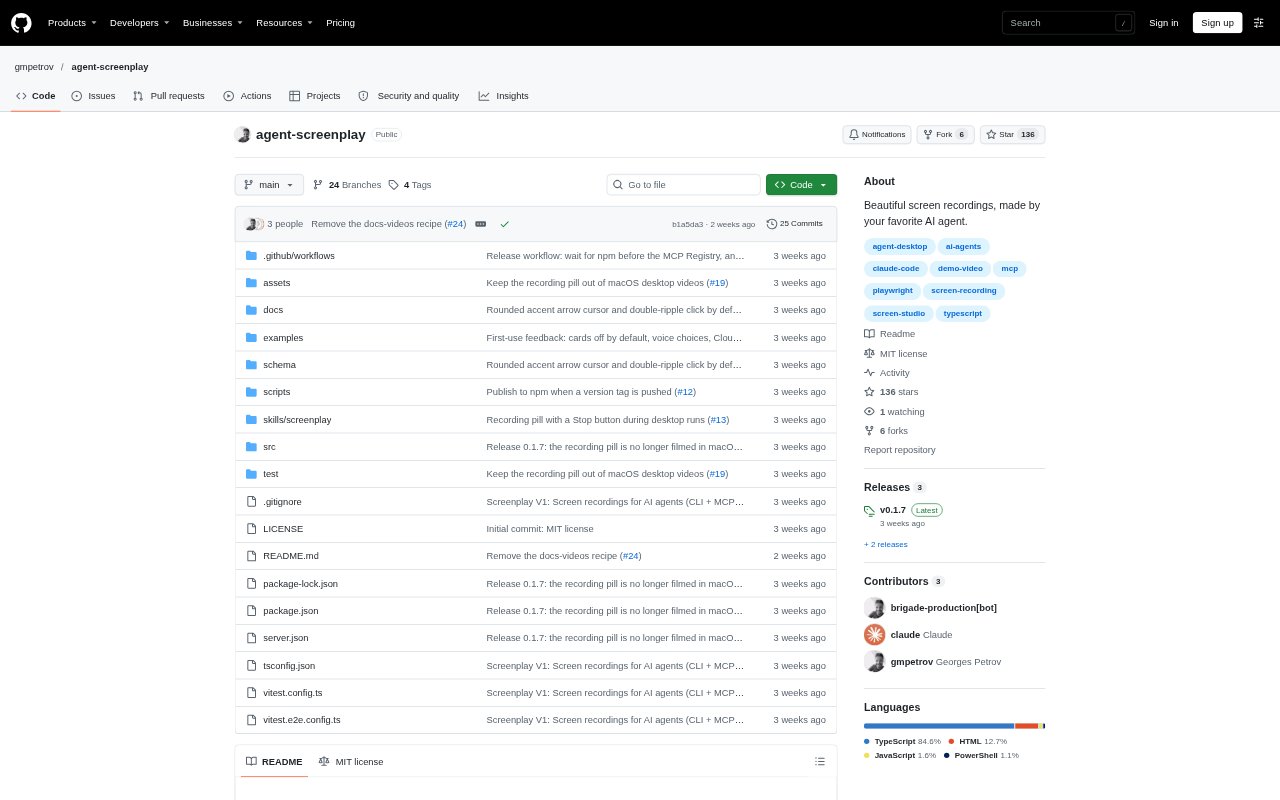
Agent-screenplay turns instructions from an AI coding agent into edited screen recordings of websites or desktop apps. The agent explores the product and creates a scenario; Screenplay runs its steps, captures the screen and produces a video. It works through an MCP server with Claude Code, Codex, Cursor and other MCP clients, or through its command-line interface, and does not include its own AI model.
Agent-screenplay Features:
Agent Workflows: Connect through MCP or use the command line, then have an agent draft a recording scenario from a request.
Web and Desktop: Record website interactions in Chromium or drive desktop apps using operating-system accessibility APIs.
Scenario Actions: Describe actions such as clicking, typing, scrolling, selecting and waiting, with targets identified by labels, text, roles or selectors.
Video Editing: Add smooth cursor movement, action-following zooms, click effects, callouts, spotlights, captions and optional title or end cards.
Voice Narration: Use step-by-step narration with Cartesia, ElevenLabs or supplied audio files, or show the narration as captions without voice.
Style Controls: Set backgrounds, padding, corners, shadows, cursor appearance and other video styling in a browser-based editor.
Export Options: Render MP4 videos at 1920×1080 and 30 fps by default, adjust output up to 4K and 60 fps, or create a GIF.
Agent-screenplay Benefits:
Less Manual Editing: Automated camera movement, cursor treatment and overlays help turn a recorded workflow into a presentable walkthrough without hand-editing each moment.
Clearer Interactions: Zooms framed on the elements being used help viewers follow the important action instead of searching the screen.
Faster Revisions: Change styling, text, zoom or voice and render again without filming the scenario another time.
Consistent Videos: Shared style settings can carry across scenarios in a folder, helping a set of product videos maintain a common look.
Flexible Narration: Choose generated speech or existing audio, and revise narration separately from the screen capture.
Use Cases:
Product Walkthrough: Create a short tour that shows a prospect how to move through a product’s key screens and actions.
Feature Announcement: Record a newly released feature with title cards, callouts and narration that explain what changed.
Onboarding Guide: Show new users how to complete a workflow such as inviting a teammate or sending a reply.
Support Instructions: Produce a visual guide for a repeatable task in a website or desktop application.
App Demonstration: Capture a sequence that moves between desktop apps or includes menus and other on-screen controls.