

What is Atlas?
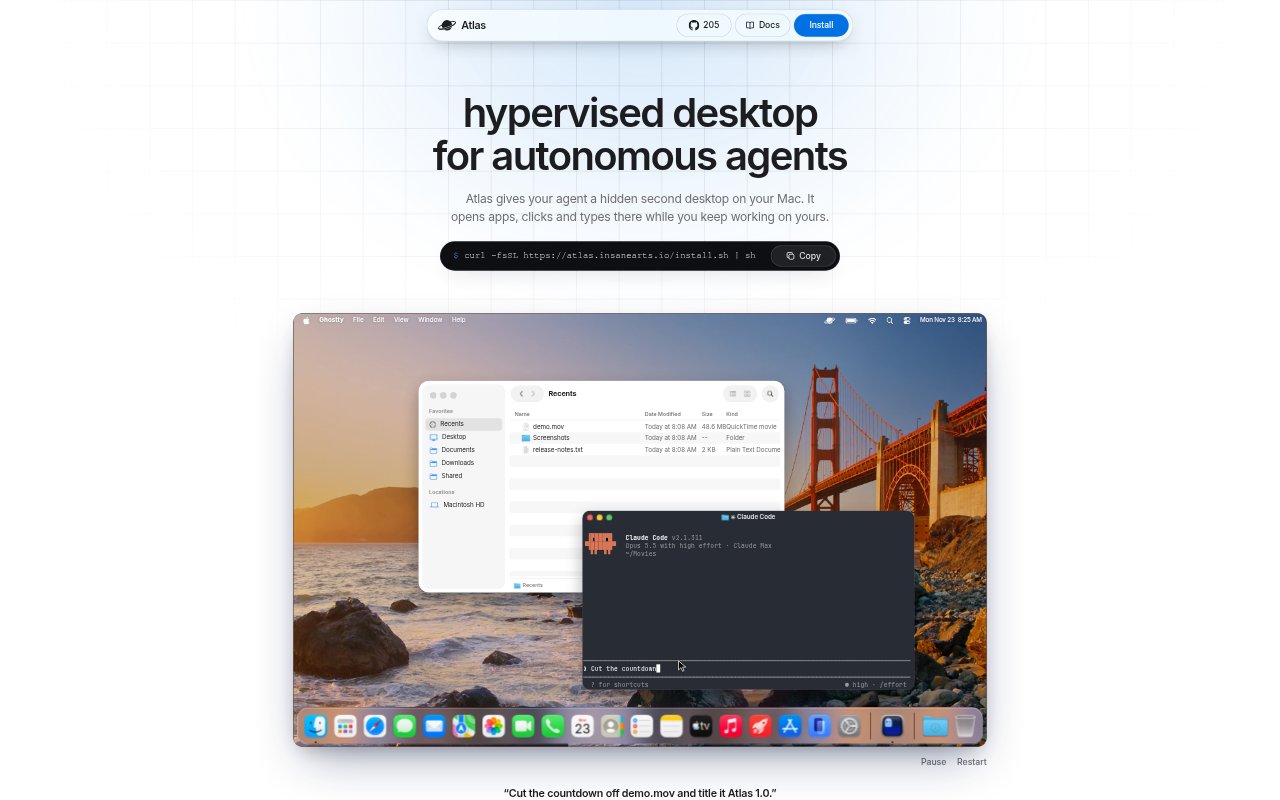
Atlas gives autonomous agents a separate, hidden macOS desktop on your Mac, where they can interact with apps without taking over your screen, mouse or keyboard. It is for people who want agents such as Claude, Codex or Cursor to handle tasks that involve a graphical interface while they keep working in their own account. Atlas runs the helper as a regular macOS login, not a virtual machine or security sandbox.
Atlas Features:
Hidden macOS Desktop: Atlas sets up a second macOS login with its own windows, Dock, settings and files, where agents can open apps, click controls, type and take screenshots.
Agent Integrations: Connect Claude, Codex, Cursor, opencode or Pi through Atlas settings or the command line, with live views available in different apps depending on the agent.
Task File Setup: Copy a build, sample files or settings into the helper for a task, then have Atlas clean up after the task ends.
Screen Monitoring: View the helper’s screen live, refresh it every five seconds, or pause updates while an agent works.
Agent Controls: Stop input from every agent, resume when ready, or take control so your mouse and keyboard come first.
Queued Access: Only one agent can act on the helper at a time, while other agents wait until it is available.
Atlas Benefits:
Keep Working: Your own screen and input devices remain available, so an agent can handle an app task without interrupting your work.
Lower Context Use: Atlas can reduce the context spent on screen-based tasks; its published comparisons found lower context use than the tested Computer Use setups.
Limit Idle Activity: When a task finishes, Atlas quits the apps it opened, leaving the helper quiet rather than keeping those apps running.
Review Progress: Screen views and the option to take control make it easier to check what an agent is doing and intervene when needed.
Keep Accounts Separate: The helper has its own macOS account, so agents work in that desktop instead of using your active account’s screen and input.
Use Cases:
Calendar Scheduling: Ask an agent to find an open time and add a meeting to Calendar while you continue using your own desktop.
Local App Testing: Have an agent sign up on a local web app in Chrome, check a build in dark mode or reproduce a reported bug.
Desktop Settings: Delegate changes in System Settings or another app, such as turning on several TextEdit settings.
File And Notes Tasks: Use an agent to write a document in TextEdit, create a checklist in Notes or inspect an image in Preview.
Installer Checks: Run an installer or test an app’s first launch in the helper, then review screenshots of the task.