
What is big-arrow-on-the-screen?
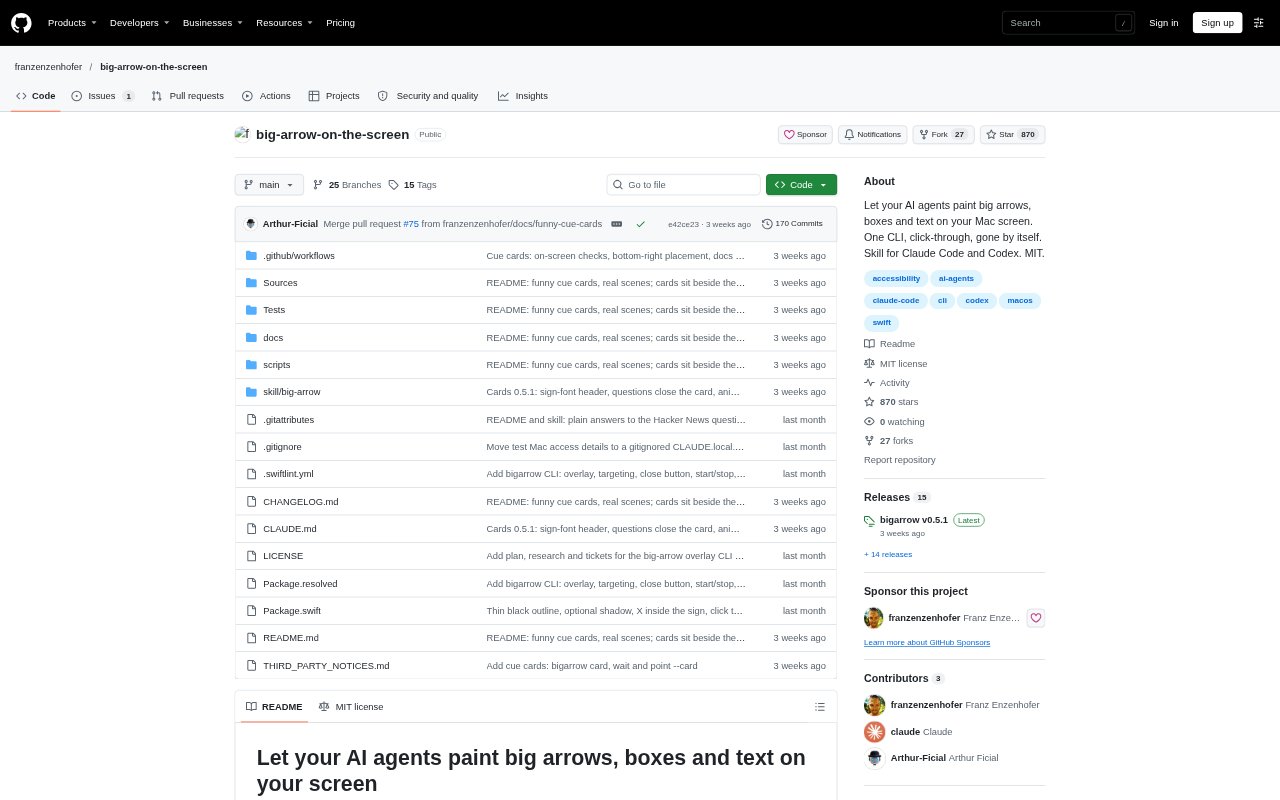
bigarrow is a macOS command-line tool for placing arrows, boxes, signs, and floating cue cards over desktop windows. It includes a skill for Claude Code and Codex, and can point to interface elements in named apps or guide a person through questions, choices, and values. Its overlays sit above windows while clicks pass through and keyboard focus stays in place, helping an agent direct a person when it needs them to take action on the Mac.
big-arrow-on-the-screen Features:
Screen Overlays: Place arrows, boxes, and text above windows across displays and Spaces, with arrows that remove themselves after use.
Element Targeting: Point to interface elements by name and app, optionally specifying a control role or a tab title to select.
Visual Styling: Adjust an overlay's color, size, shape, border, and position, with arrow, ring, box, and zigzag styles.
Interactive Cue Cards: Show floating cards with fields, links, buttons, questions, choices, checklists, progress, QR codes, and other row types.
Secret Handling: Load secrets from sources such as a keychain, 1Password, environment variables, or files, and display them concealed.
Response Collection: Wait for a person to answer questions, choose an option, or press a button, then return the interaction results as JSON.
big-arrow-on-the-screen Benefits:
Unblocked Interaction: People can follow on-screen directions without losing keyboard focus or having their clicks intercepted by the overlay.
Clearer Guidance: Marking the specific control to use can reduce confusion when app labels or nearby buttons look similar.
Cleaner Desktop: Self-removing arrows avoid leaving temporary visual instructions on screen after they have served their purpose.
Safer Secret Sharing: Concealed display and clipboard handling help limit exposure of sensitive values during a guided task.
Fewer Follow-Ups: Collecting answers and choices in a cue card gives an agent a way to receive the person's response directly.
Use Cases:
Mac Permission Setup: Guide someone through System Settings to enable a permission or add an app that is not yet in the list.
App Walkthroughs: Show someone the sequence of controls needed to create an animation or play a presentation in Keynote.
Window Navigation: Identify the right tab in a crowded Chrome window or the correct view and grouping controls in Finder.
Guided Sign-In: Present a username, concealed password, or live two-factor code alongside the field where it belongs.
Deployment Decisions: Ask for approval, collect a choice, or present a checklist before someone proceeds with a deployment.
Step-by-Step Guides: Create visual instructions for a Mac task, such as allowing screen recording, with arrows shown in the screenshots.