

What is Bitty?
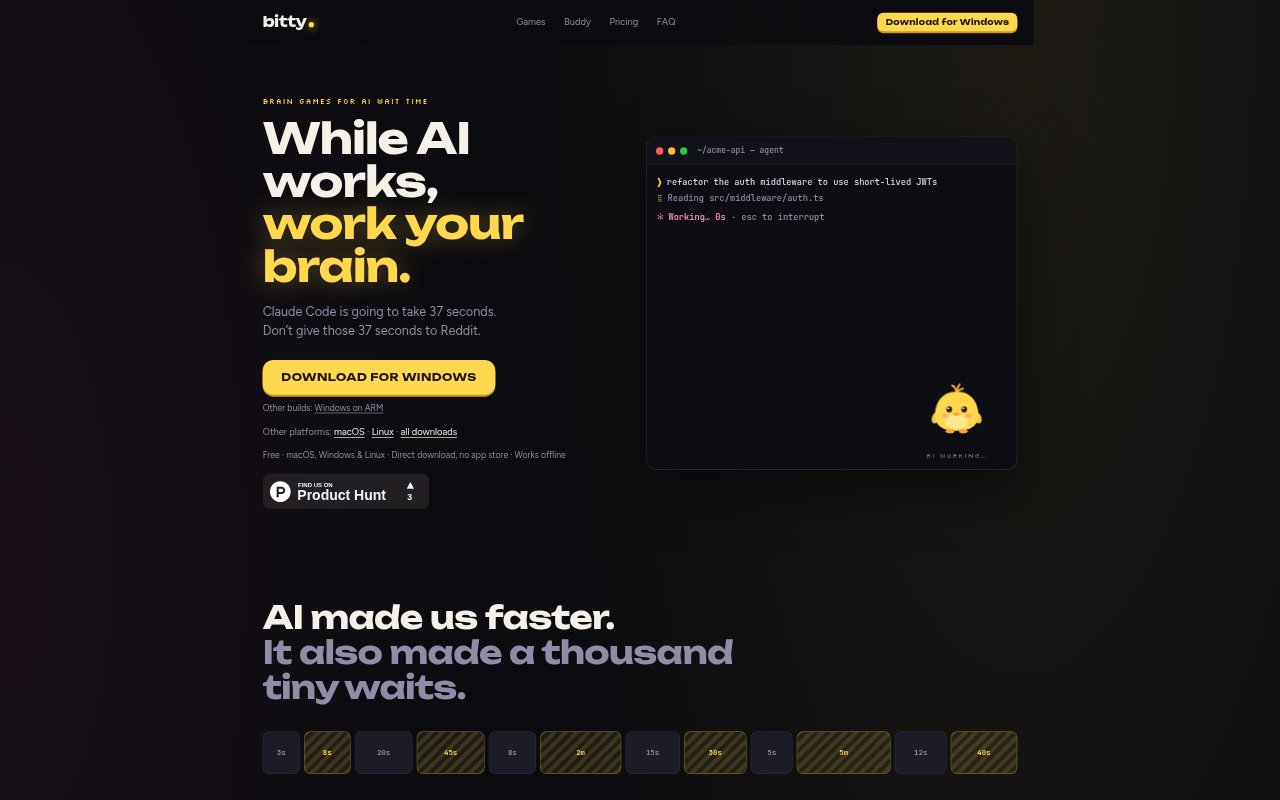
Bitty is a desktop arcade for short brain games during the pauses while AI tools work. It is made for people who use coding assistants or chat-based AI and want a quick activity without opening a distracting feed. Games are sized to a wait you choose, and a pixel buddy sits beside your work; Bitty runs on macOS, Windows, and Linux.
Bitty Features:
Wait-Sized Games: Choose a wait from five seconds to five minutes and Bitty offers a challenge suited to that window, with games covering math, memory, patterns, logic, estimates, code, and reactions.
Shortcut and Timer: Open a challenge with a keyboard shortcut or choose a rough wait from the menu bar or tray, where an optional timer can nudge you when the time is up.
Quick Exit: Press Esc to leave a challenge at any point, including mid-question, and return to your work without waiting for a round to finish.
Pixel Buddy: A small desktop character sits by your terminal, reacts to waiting and correct answers, and gains levels that unlock cosmetic items such as skateboards, laptops, and arcade machines.
Offline Puzzles: Bitty generates puzzles with code on your computer and works offline; it does not use AI or read your code, terminal, browser, files, or AI conversations.
Progress Tracking: The app tracks play time, streaks, and challenge history, with optional account-based syncing; paid features include longer Boss Fights, trends, a Brain Profile, and data export.
Bitty Benefits:
Protect Work Focus: Short rounds and an immediate exit make it easier to use a brief pause without letting a small wait turn into a much longer detour.
Use Idle Time: A quick puzzle gives your attention a light task during the gaps between prompts and results, rather than leaving that time entirely unoccupied.
Keep Work Private: Because Bitty does not inspect your work or conversations, you can play alongside an AI tool without sharing that activity with the game.
See Time Reclaimed: Tracking minutes spent playing instead of scrolling gives you a personal view of how your AI-related downtime is being used.
Use Cases:
Coding Assistant Waits: Open a short logic or code challenge after submitting a task to Claude Code, Cursor, Copilot, or another coding assistant.
Chatbot Responses: Play a brief round while ChatGPT, Gemini, Claude, or another AI chat tool prepares a response, then exit when you are ready to continue.
Noncoding Breaks: Use Everyday mode for math, memory, patterns, estimation, logic, and reaction games when coding puzzles are not a fit.
Timed Work Pauses: Start a rough wait timer from the menu bar or tray when you want a reminder to return to a task after a short game.