
What is EXZA Remote?
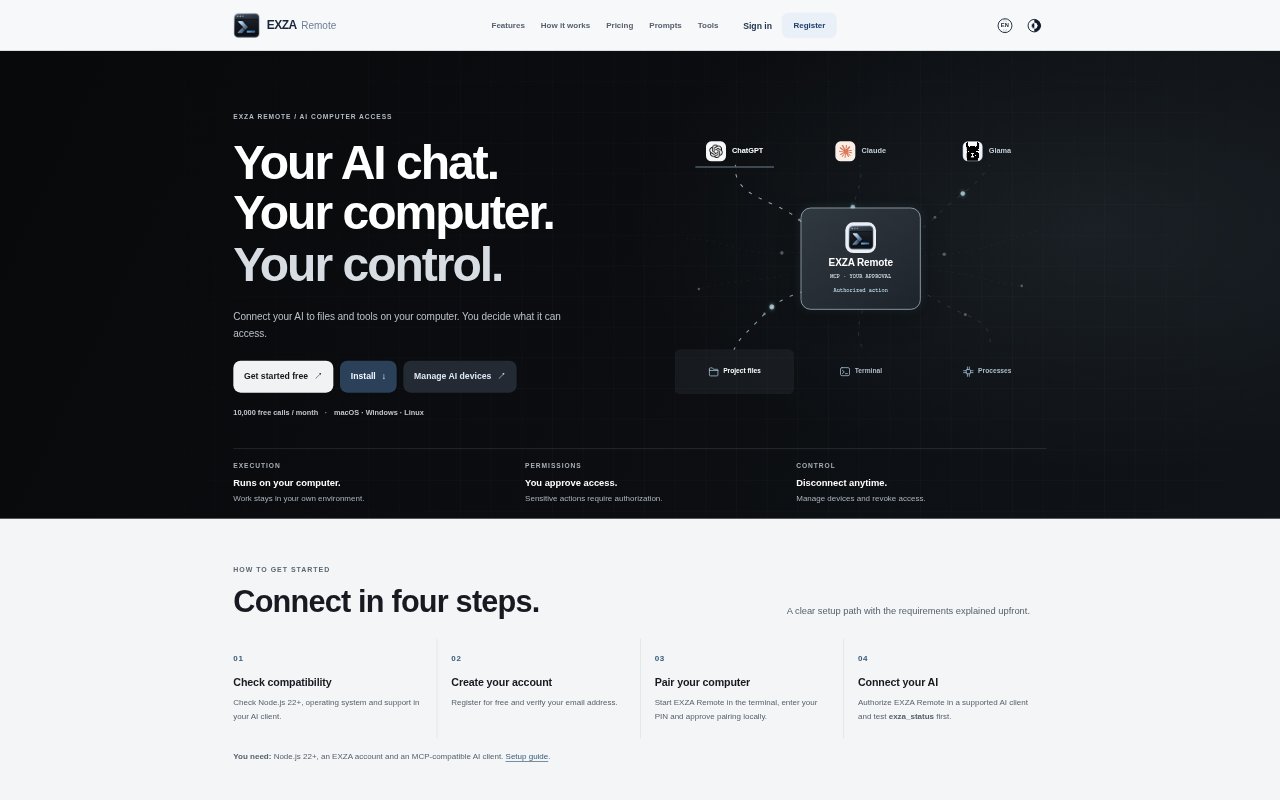
EXZA Remote connects ChatGPT, Claude, Glama and other supported MCP clients to a Mac, Windows or Linux computer. From an AI conversation, users can work with files and approved tools on that computer, with actions limited by granted access and local permissions. It requires Node.js 22+, an EXZA account and a compatible AI client. The connection runs through a terminal session that users can end, and paired devices can be revoked from the account.
EXZA Remote Features:
File Access: Read project files and inspect folder contents within a workspace approved for the connected computer.
Terminal Commands: Run permitted terminal tasks on the computer and receive their output in the AI conversation.
Application Access: Inspect and open supported desktop applications, with availability depending on the operating system environment.
Device Pairing: Pair a computer by starting EXZA Remote in a terminal, entering a PIN and approving the connection locally.
Access Controls: Set workspace scope, manage paired computers separately and revoke a device or end the terminal connection.
AI Client Support: Connect through MCP with supported ChatGPT Web, Claude and Glama setups, subject to client, plan and permission requirements.
EXZA Remote Benefits:
Keep Work Local: Work with existing files and applications without first moving them into a separate cloud workspace.
Review Results: See actual command output in the conversation, making it easier to check what a requested task returned.
Limit Exposure: Scoped access and local authorization help keep sensitive computer actions within boundaries chosen by the user.
Stay Reversible: Ending a session or revoking a device gives users a direct way to stop computer access when it is no longer needed.
Use Existing Clients: People can work from supported AI conversations rather than switching to a separate cloud workspace for computer tasks.
Use Cases:
Review Project Files: Ask an AI client to inspect an approved project folder or show a README file stored on the paired computer.
Check a Directory: Run a permitted command such as pwd to confirm the current working directory during a computer-based task.
Inspect Applications: Check which supported desktop applications are running when reviewing the state of a connected computer.
Run Terminal Tasks: Ask an AI assistant to execute an approved terminal task and return its output for review in the chat.
Authorize File Changes: Work on a project-file update that needs write permission and, where required, explicit approval in the local terminal.