

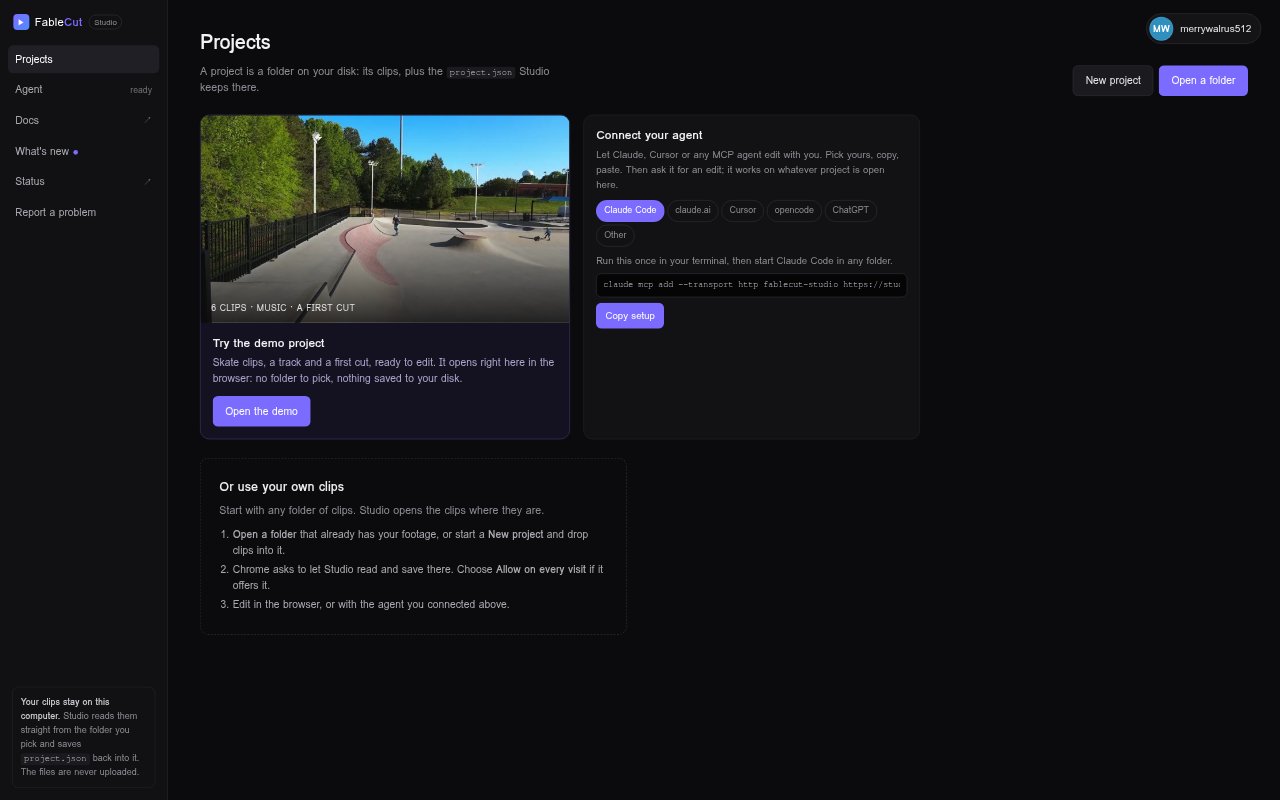
What is FableCut Studio?
FableCut Studio is a browser-based video editor for people who want to work with video, audio and image files on their computer. It provides a timeline workflow with editing, color, animation and export tools, and lets users connect Claude, ChatGPT or another MCP agent to edit alongside them. Clips remain on the user’s computer, while URL imports are downloaded into the project media folder for local playback.
FableCut Studio Features:
Timeline Editing: Arrange clips on targeted tracks, trim and split them, ripple or roll edits, add transitions, and link or unlink video and audio.
Local Media: Import video, audio and images from a folder or HTTPS URL, create proxies for editing, and relink or replace project media.
Agent Editing: Connect Claude, ChatGPT or another MCP agent to work on edits alongside you in the browser-based editor.
Compositions and Templates: Build nested compositions, precompose selected clips, and add lower thirds, logo animations or social layouts from templates.
Color and Masks: Adjust color with wheels and curves, create editable masks, and use tracking tools to follow a point through a clip.
Export and Versions: Encode multiple checked output files from the same frames, save project versions, compare them with the current edit, and restore an earlier version.
FableCut Studio Benefits:
Private Footage: Keeping clips on your computer lets you edit without sending source media to a remote playback service.
Fewer Repeated Edits: Ripple and rolling edits help preserve timing across neighboring clips when changes affect a cut or remove a gap.
Safer Experiments: Saved project versions provide a point to revisit if a later round of editing does not work out.
Flexible Review: Multiple outputs rendered from the same frames make it easier to prepare different export files without rebuilding the sequence.
Reusable Motion: Saved animation presets and templates can reduce the effort of repeating a visual treatment across projects.
Use Cases:
Clip Assembly: Bring footage, audio and still images into a project, arrange them on the timeline, and refine the sequence with trims and transitions.
Social Videos: Start a social layout from a template, place it on the timeline, and fill in its fields in the Inspector.
Branded Intros: Add a logo animation or lower third to a sequence and adjust its placement or motion for a finished video.
Color Correction: Balance a shot with the color tools, shape a mask around part of the image, and track a point as it moves.
Agent-Assisted Editing: Work with a connected MCP agent while editing a project, with the editor’s timeline and media tools available for the job.