
What is Gemini CLI?
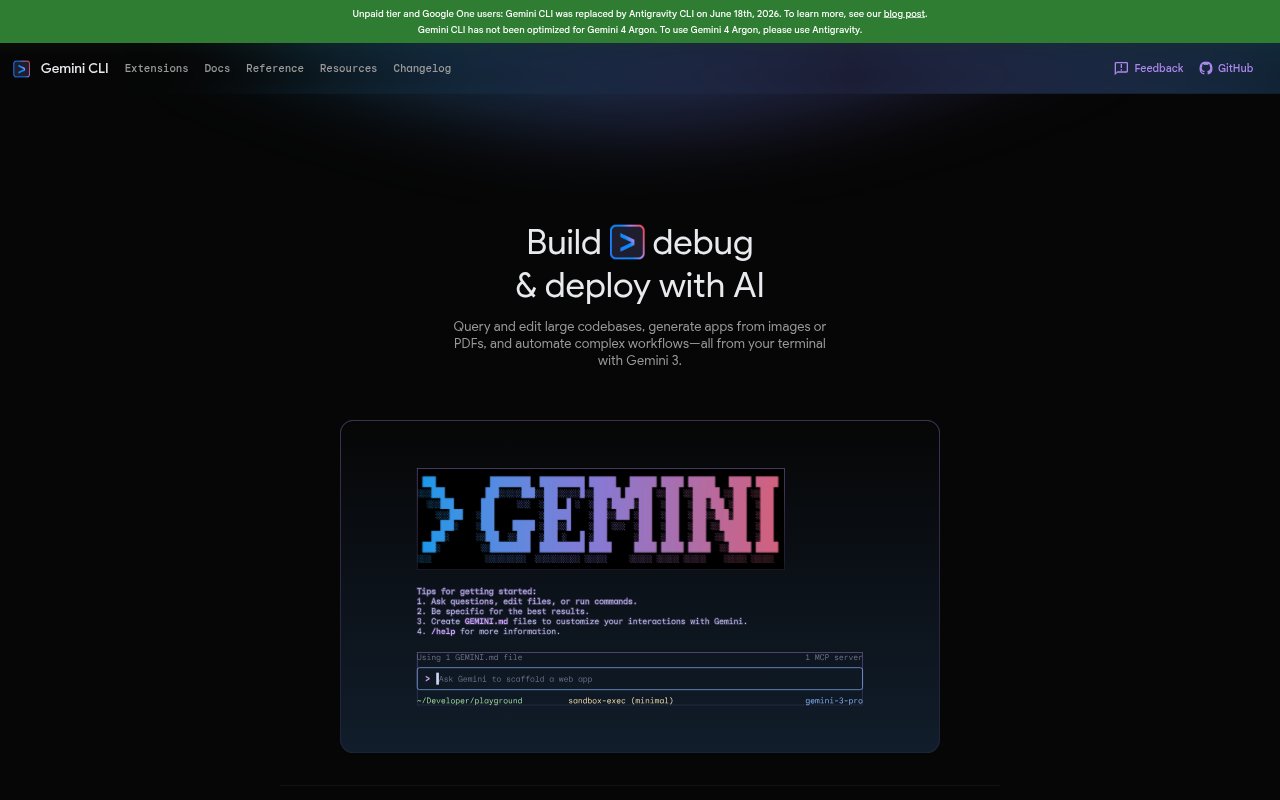
Gemini CLI is an AI tool for working with code from a terminal. It can query and edit large codebases, help build, debug, and deploy, generate apps from images or PDFs, and automate complex workflows. It is aimed at people who want to use AI while working on software projects in a command-line environment. Availability has changed: unpaid-tier and Google One users were moved to Antigravity CLI on June 18, 2026.
Gemini CLI Features:
Codebase Queries: Ask questions about large codebases from the terminal, using the tool to explore a project without limiting the task to a small snippet of code.
Code Editing: Work with code changes through terminal-based requests, with the ability to query and edit large codebases as part of a development task.
Image And PDF Inputs: Generate apps from images or PDFs, letting a visual or document input serve as the starting point for an app-building task.
Workflow Automation: Automate complex workflows from the terminal, applying AI to multi-step work rather than limiting use to individual code questions.
Build Debug Deploy: Use Gemini 3 from the terminal for work across building, debugging, and deploying, covering several stages of a software project.
Gemini CLI Benefits:
Less Context Switching: Keeping code questions and edits in the terminal can help developers stay in their command-line workflow while getting AI assistance.
Work With Large Projects: The ability to query and edit large codebases makes it possible to approach broader project tasks without reducing every request to a small code excerpt.
More Flexible Inputs: Starting app generation from images or PDFs gives users a way to work from visual and document material, as well as code.
Broader Task Coverage: Support for building, debugging, deploying, and workflow automation lets users bring several kinds of software work to one terminal tool.
Use Cases:
Explore A Codebase: Use terminal queries to investigate a large project when you need to understand or work with code spread across a broader codebase.
Edit Project Code: Bring AI assistance into a coding session when you want to query and make edits to an existing codebase from the terminal.
Create From Documents: Use an image or PDF as the input for app generation when a project begins with visual material or information in a document.
Automate Development Work: Apply workflow automation to complex tasks in a software project, or use the tool for work involving building, debugging, or deployment.