What is Halis Code?
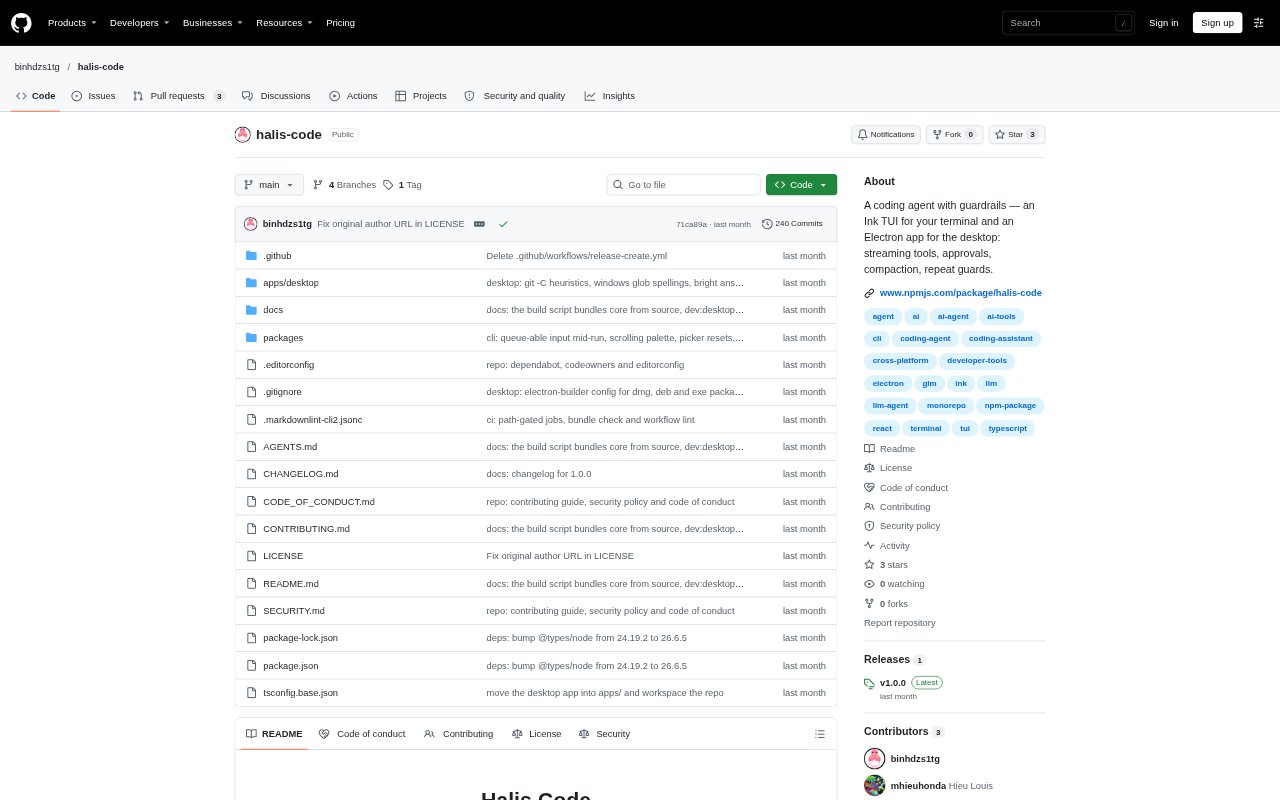
Halis Code is a coding agent available as a terminal interface and a desktop app for working with code in a project. It can inspect and edit files, run shell commands, search code, and stream its progress while using a chosen model. Approvals for risky commands, context compaction, and repeat-call guards are built into its workflow. Developers can use it on macOS, Linux, or Windows, with provider keys or a self-hosted endpoint.
Halis Code Features:
Terminal and Desktop: Use an interactive terminal interface or an Electron desktop app with a session sidebar, conversation view, and workspace rail.
Code and Shell Tools: The agent can list, read, write, and edit files, search with glob and grep, and run shell commands.
Command Approvals: Risky shell commands request approval and display a reason, while a setting can turn approval prompts off.
Context Management: When the transcript reaches its token budget, older history is summarized at safe cut points and a verbatim tail is kept.
Repeat Guard: Checks detect identical tool calls and issue escalating reminders before stopping repeated calls at a hard limit.
Model Catalog: Choose from a bundled catalog covering more than 200 providers and 8,000 models, with support for OpenAI-style and Anthropic protocols.
Session Tools: Continue or resume sessions, inspect usage and estimated cost, view a working-tree diff, and export a transcript to Markdown.
Halis Code Benefits:
Fewer Lost Details: Safe compaction and saved oversized tool output help preserve task context through long sessions without silently dropping information.
Safer Command Runs: Approval prompts make risky shell actions visible before execution, giving developers a chance to review what the agent plans to run.
Less Repeated Work: The repeat guard can interrupt cycles of identical calls, reducing time spent watching an agent retry the same failing action.
Flexible Model Choice: A broad provider and model catalog lets developers choose a compatible service for their project or use a self-hosted endpoint.
Work in One Place: The desktop workspace brings files, editing, terminal access, and search together, helping developers move between code and agent output.
Use Cases:
Fix a Failing Build: Ask the terminal agent to inspect a repository, investigate build errors, edit relevant files, and run commands to check the result.
Understand a Repository: Use a one-shot prompt to summarize a codebase or ask the agent to explore files and report back from a separate context.
Review Working Changes: Check the working-tree diff during an agent session to inspect edits before deciding what to keep or revise.
Run a Migration: Have the agent carry out a shell-based migration while approval prompts keep potentially destructive commands visible for review.
Automate Test Runs: Start a prompt-driven run that executes tests and returns line-based JSON events for use in scripts.