
What is HyperFrames?
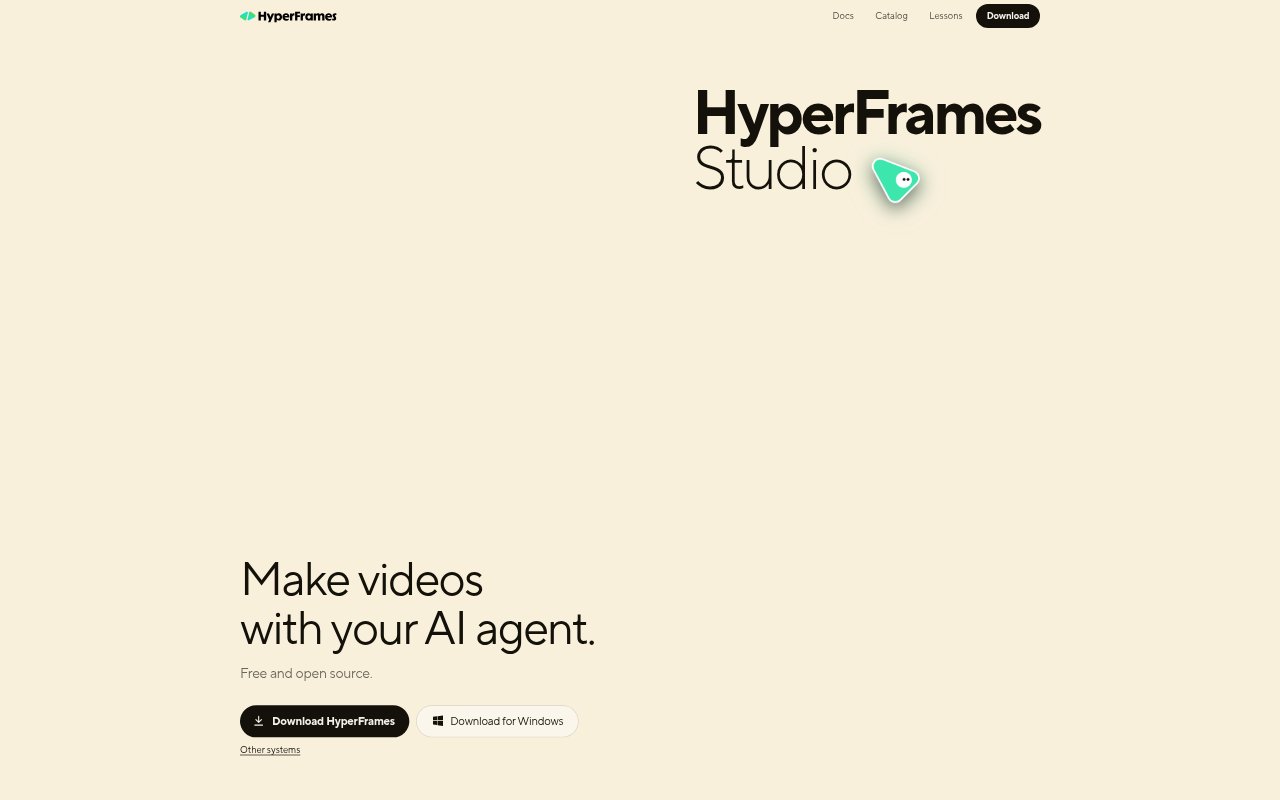
HyperFrames is a free, open-source video creation tool for people who want to work with an AI agent rather than build every step manually. In its Studio app, you describe a video and an agent on your computer builds it; you can then make changes through text, pointing, drawing or comments. You can also use your own agent, create videos through supported chat tools, or open Studio in a browser.
HyperFrames Features:
Prompt-Based Creation: Describe the video you want in Studio, and an agent on your computer builds it.
Visual Revisions: Adjust a video by typing, pointing at the picture, drawing on it or leaving a comment.
Desktop Support: Studio has downloads for macOS, Windows and Linux, including Windows on Arm and Linux AppImage.
Coding Agents: Add HyperFrames skills to a project folder and ask Claude Code, Codex or Cursor to make a video.
Chat Connectors: Connect Claude, ChatGPT or Grok to describe a video and have it rendered in the cloud with a HeyGen account; this option is in beta.
Browser Studio: Use HyperFrames Studio in a browser without installing the desktop app.
Open-Source Software: HyperFrames is free and open source under the Apache-2.0 license.
HyperFrames Benefits:
Faster First Draft: Starting with a description gives you a built video to work from instead of beginning by assembling every element yourself.
Focused Feedback: Pointing, drawing and commenting let you explain visual changes in context, which can make feedback clearer than describing a frame from memory.
Flexible Workflow: The desktop app, browser Studio, coding-agent skills and chat connectors give you different ways to work based on where you prefer to create.
Lower-Cost Trial: Because HyperFrames is free, you can explore agent-assisted video creation without paying for the tool itself.
More Control: Open-source availability gives teams the option to inspect and work with the project rather than relying only on a closed application.
Use Cases:
Short Ad Creation: Follow the Studio lesson to make a 20-second ad, using an agent to build the video from your description.
Agent-Assisted Video: Ask an agent on your computer to create a video when you already use a supported coding agent in your project.
Visual Review: Use pointing, drawing or comments to request revisions while reviewing a video in Studio.
Browser-Based Work: Open Studio in a browser when you want to make a video without installing the desktop app.
Chat-Based Creation: Describe a video in Claude, ChatGPT or Grok and use the beta connector to render it in the cloud with a HeyGen account.