
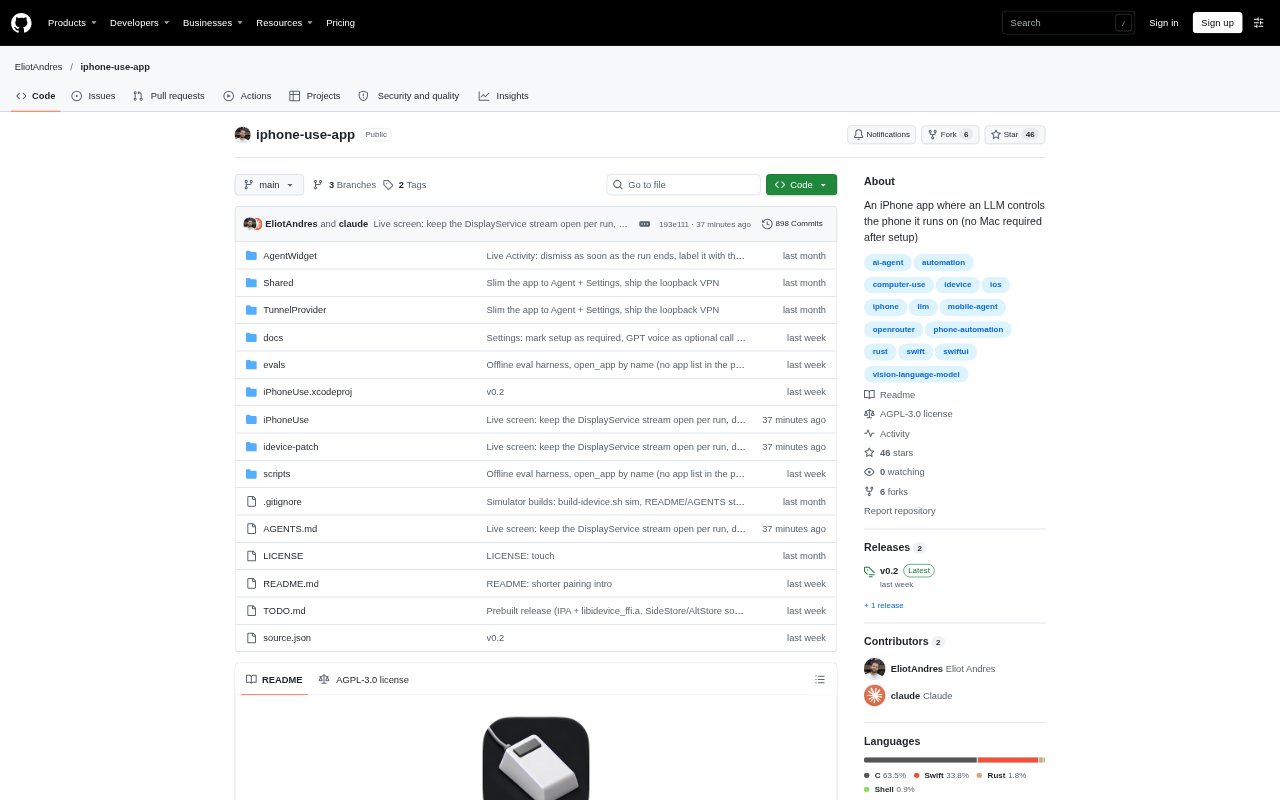
What is iPhone Use?
iPhone Use is a sideloaded iPhone app that lets an AI model carry out tasks in apps on the same phone, using screenshots and touch actions. It is intended for people who want to give a phone task in plain language and let an AI model navigate the interface. It requires iOS 26 or later, Developer Mode, a model provider key, and a one-time Mac pairing step; a Mac is not needed while tasks run.
iPhone Use Features:
Phone Control: The app uses a loopback VPN to take screenshots and perform actions on the iPhone it is running on, without extra hardware.
Visual Task Loop: For each step, it sends a screenshot to the model and uses the returned tool call to continue the task.
Touch Actions: The model can tap, long press, swipe, type, and open apps while working through a requested task.
Model Options: Users can connect through OpenRouter or configure an OpenAI-compatible endpoint with a model that accepts images and tool calls.
Launch Choices: A task can be started from the app's chat, Siri, the Run Agent Shortcut, or an iphoneuse link containing a prompt.
Run Records: A Live Activity displays run progress and offers a Stop button, while completed runs are saved as chats.
iPhone Use Benefits:
Less App Switching: The model can move between apps and interact with their screens, so users can describe a task instead of manually navigating every step.
No Run-Time Mac: After pairing, users can start and supervise tasks on the phone without keeping a computer connected.
Reviewable Actions: Saved chats and step screenshots make it easier to inspect what happened during a run and understand the model's choices.
Flexible Model Setup: Support for compatible image-and-tool-call models lets users choose a provider and model that fit their setup.
Interruptible Runs: The visible progress and Stop control let users keep an eye on an active task and halt it when needed.
Use Cases:
Ride Selection: Ask the agent to find a destination in Lyft, choose a ride, and stop at the options without booking.
Phone Settings: Give it a task such as opening Settings and turning on Dark Mode, then let it navigate the controls.
Writing a Note: Use a prompt to have the agent open a notes app and enter text through the phone's interface.
App Navigation: Delegate a sequence that involves opening an app, entering information, and selecting an on-screen option.
Voice-Started Tasks: Start a phone task with Siri when typing a prompt into the app's chat is inconvenient.