

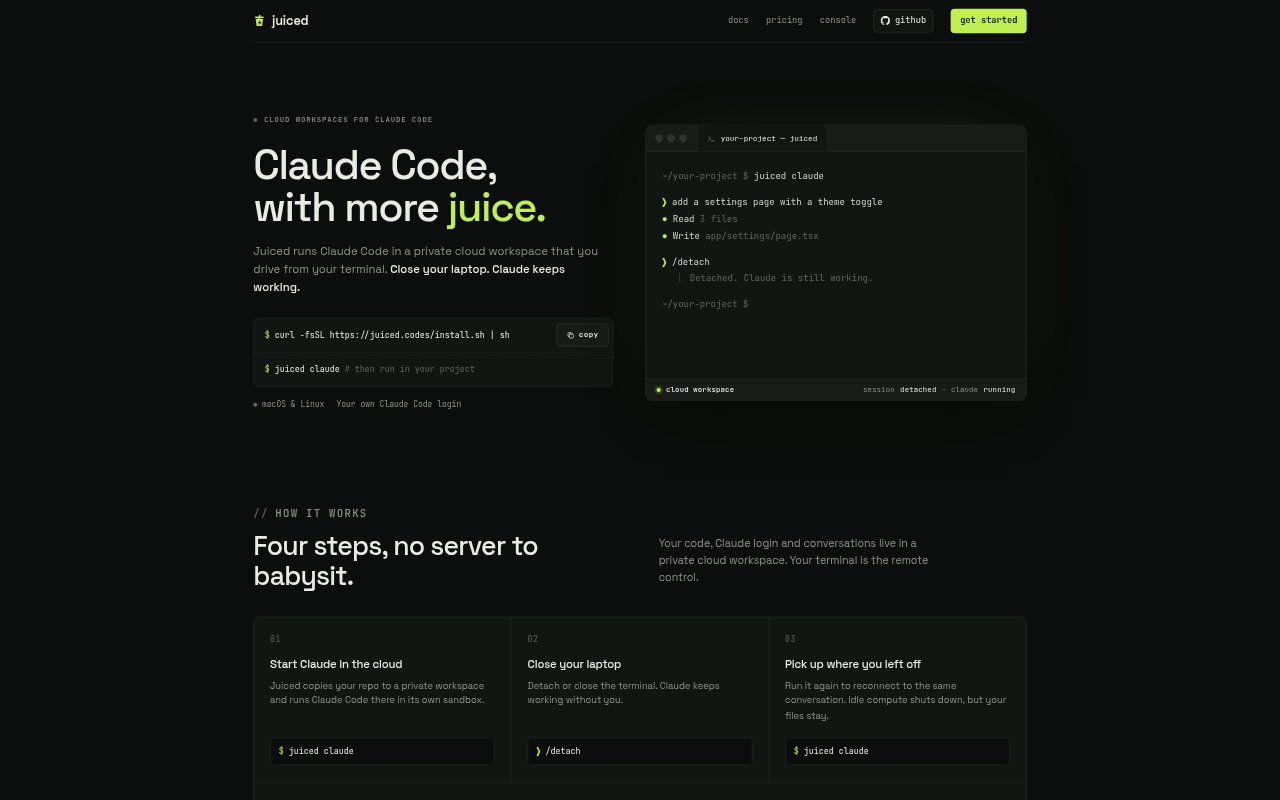
What is Juiced?
Juiced runs the Claude Code CLI in a private cloud workspace controlled from a terminal on macOS or Linux. It copies a repository into a sandboxed workspace, where Claude Code can keep working after the terminal is detached or the laptop is closed. Each project has its own files, Claude login, and conversations, and users can reconnect to continue a session. Juiced requires your own Claude subscription or API key; Claude Code access is not included.
Juiced Features:
Persistent Workspaces: Start Claude Code in a cloud workspace, detach from the terminal, and reconnect later to the same conversation while the project files remain available.
Parallel Sessions: Each terminal tab can run its own Claude session, so you can work on separate coding tasks at the same time.
Project Isolation: Juiced uses your current directory to select a workspace, keeping each project's files, Claude login, and conversations separate.
Explicit Code Transfer: Git repositories start from your local HEAD, and code does not move between your computer and the workspace unless you request it.
Local File Approval: You can ask Claude to use local files such as environment files or test fixtures, review what will be sent, and approve it first.
GitHub Access: A scoped token lets the cloud workspace push branches and open pull requests through GitHub.
Juiced Benefits:
Work Beyond Your Laptop: Claude Code can keep working while your laptop is closed, so you do not have to leave your computer running for a session.
Protect Local Changes: Review remote work before applying it, keeping your local branch unchanged until you choose to import or fast-forward the results.
Skip Server Upkeep: A managed cloud workspace avoids the need to set up and babysit your own server just to keep Claude Code running.
Keep Project Contexts Separate: Separate workspaces help prevent conversations and files from different projects from getting mixed together.
Control What Moves: Explicit transfers and approval for local files give you a chance to check what code or data leaves your computer.
Use Cases:
Long Coding Tasks: Start Claude Code on a feature or code change, detach from the terminal, and return later to review its progress.
Concurrent Code Changes: Use separate terminal tabs to ask Claude to work on different tasks or projects in parallel.
Review AI Changes: Compare the workspace's changes with local files, then import Claude's commits or fast-forward them to your branch when ready.
Tests With Local Files: Let Claude work with a local environment file or test fixture after checking and approving the files Juiced will send.
GitHub Pull Requests: Give a workspace a scoped GitHub token when you want Claude to push a branch or open a pull request.