

What is kensaku?
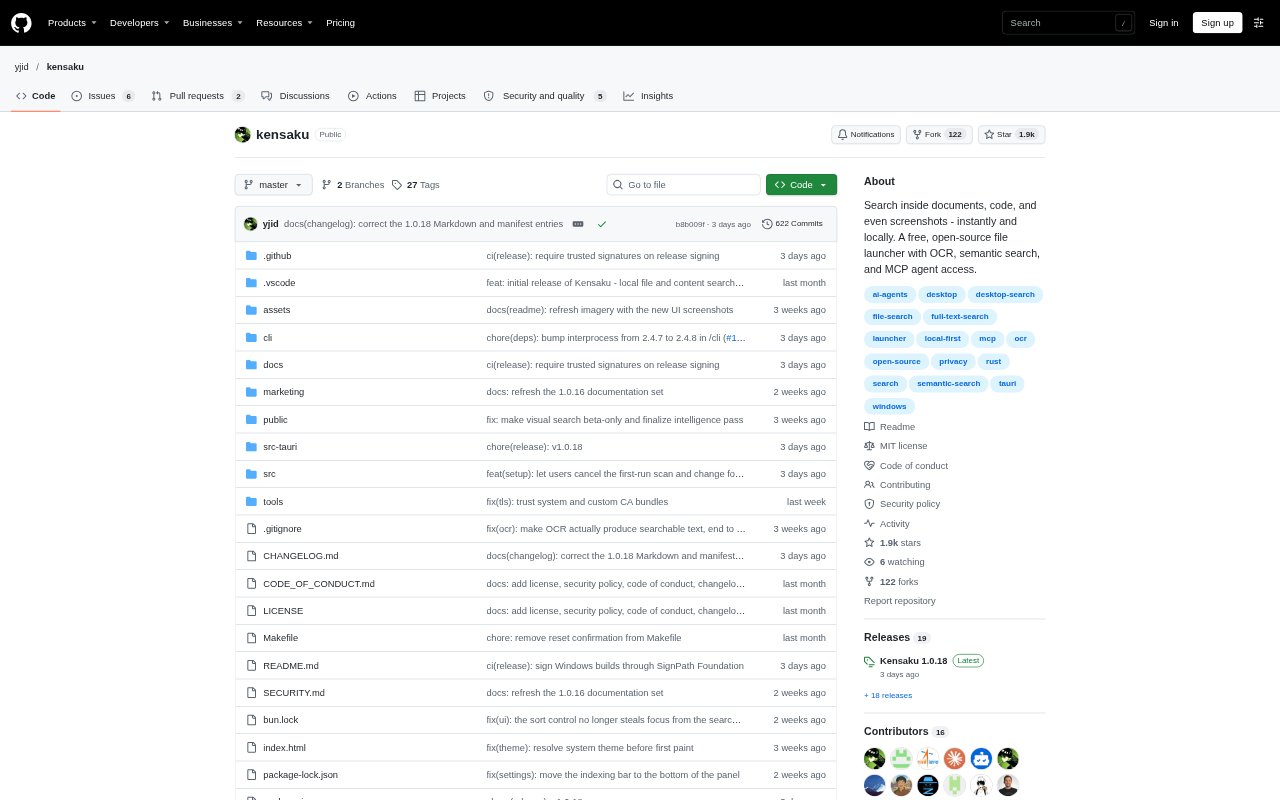
Kensaku is a desktop file-search app for people who need to find files by name, content, or meaning. It searches documents, code, and text in images, and runs on Windows, macOS, and Linux. The app can work as a keyboard-summoned launcher or a regular desktop window, with a command-line interface and MCP access for compatible AI agents. It is free, open source under the MIT licence, and keeps its index on the user’s computer.
kensaku Features:
Unified Search: Search filenames, file contents, fuzzy matches that tolerate typos, and semantic matches from one query, with matching words highlighted in results.
Document Coverage: Index text in formats including PDF, DOCX, EPUB, spreadsheets, email, plain text, and more than 50 code and data formats.
Image OCR: Search text recognized in images using the bundled PP-OCRv6 engine, or choose the Indra or Tesseract OCR engines in settings.
Query Filters: Narrow results by file type, extension, path, size, modification date, or language, and use natural-language time queries or bounded regular expressions.
Launcher Options: Summon the app from the system tray with a keystroke or use desktop mode, then preview PDFs, images, and text with the space bar.
Agent Access: Let compatible AI agents search the local index over MCP, with read-only access by default, or use the CLI for searches and other index queries.
kensaku Benefits:
Less Filename Guessing: A remembered phrase from inside a file can be enough to find it, even when its filename is vague or unfamiliar.
Private Search: Keeping the index on the computer, with no account, telemetry, or cloud search, lets users search without sending their files to an online service.
Quicker Retrieval: A warm index and results that update as you type help users get to a file without waiting through repeated manual searches.
Fewer App Switches: Searching documents, code, and image text in the same place reduces the need to open files one by one just to check their contents.
Flexible Workflows: Launcher, desktop, command-line, and agent access let people search in the way that suits their task.
Use Cases:
Recovering Screenshots: Search for an error message seen in a screenshot, even if the image has a generic or unhelpful filename.
Finding Documents: Locate a PDF or office document by recalling a phrase or subject inside it rather than remembering its saved name.
Investigating Logs: Look across folders of logs for a line related to a failed deployment or another troubleshooting issue.
Searching Code: Find a function definition or search source files with a regular expression when working across a codebase.
Finding Recent Files: Use queries such as “screenshots from last week” or “3 days ago” to retrieve files by when they were modified.