
What is Kucedr?
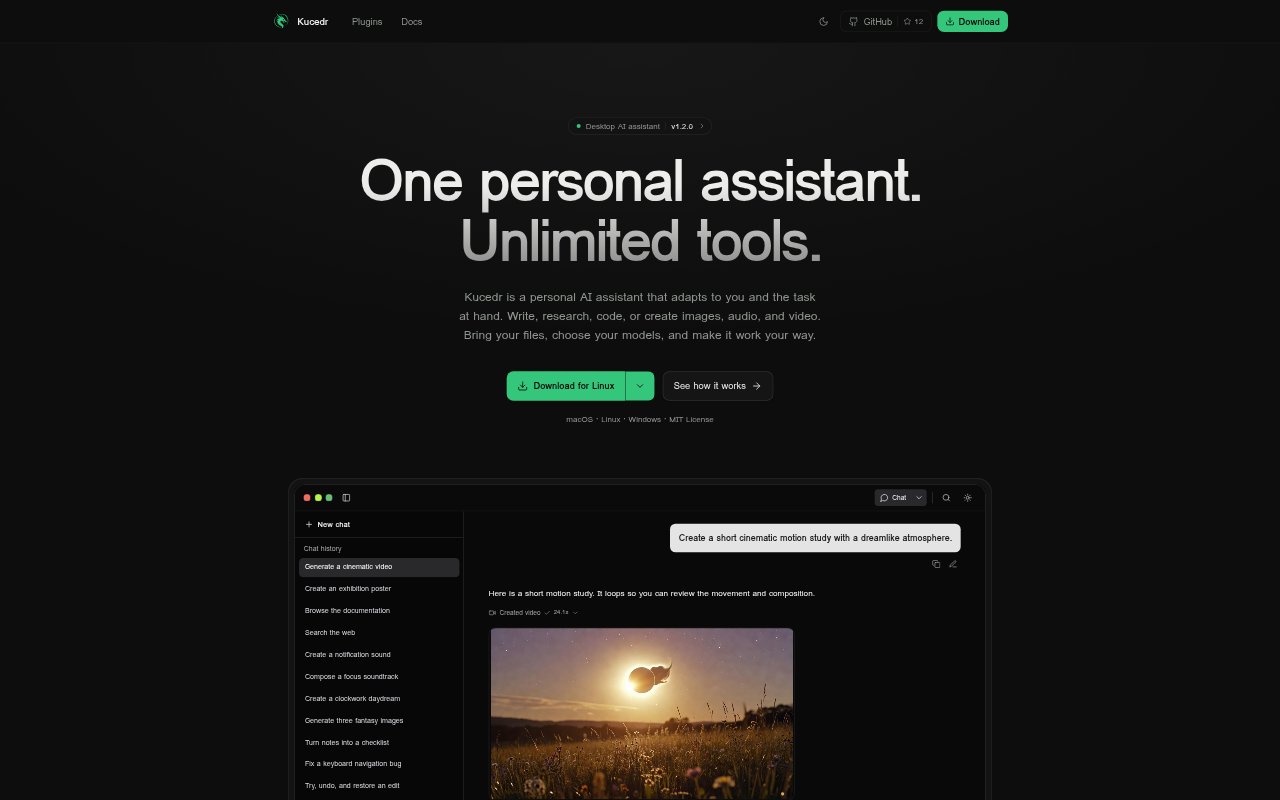
Kucedr is a desktop AI assistant for people who want one workspace for writing, research, coding, and media creation. It runs on macOS, Windows, and Linux, and can work with files, connected AI providers, and a configurable set of tools. Conversations, memory, settings, and installed apps are kept in a local profile, while the user chooses which external providers receive task inputs.
Kucedr Features:
Model Choice: Choose AI providers and separate models for chat, voice, image, video, audio, scheduled work, and health checks.
Local Workspace: Keep conversations, saved memory, settings, and installed apps in a desktop profile without a Kucedr cloud account.
File and Command Tools: Read and edit files, apply structured patches, run shell commands, and manage long-running processes through agent tools.
Web Research: Search the web, fetch public pages, and use a persistent browser to inspect pages, interact with sites, or capture snapshots.
Memory and Knowledge: Set profile and project instructions, save facts, and retrieve relevant information from a knowledge base.
Scheduled Work: Schedule agent tasks and periodic health checks with chosen models and tools, and pause or run tasks when needed.
Apps and Connections: Extend the workspace with focused apps, MCP connections, plugin packages, integrations, skills, and compatible remote agents.
Kucedr Benefits:
Flexible Setup: Choosing providers and models by task lets users shape the assistant around their existing preferences and work.
More Control: Keeping the profile on the desktop and selecting external providers gives users a clearer say in where their work context goes.
Fewer Repeated Prompts: Saved facts, project instructions, and knowledge retrieval help keep useful context available across conversations.
Background Progress: Recurring tasks and health checks can continue useful work without requiring a fresh prompt each time.
Visible Activity: Conversation activity summaries show whether tool calls are running, complete, or in error, making agent work easier to review.
Use Cases:
Document Research: Attach files, search the web, and ask the assistant to summarize documents or investigate a question.
Code and Debugging: Use file editing and shell tools to work on code, apply a patch, or investigate a keyboard navigation bug.
Media Drafting: Create images, video, music, or sound effects as part of a creative project and review generated media in the conversation.
Project Follow-Up: Schedule recurring project reviews or health checks so routine follow-up can run in the background.
Team Review: Ask multiple assistants to review a launch or delegate a research brief to a compatible remote agent.