

What is Lasso?
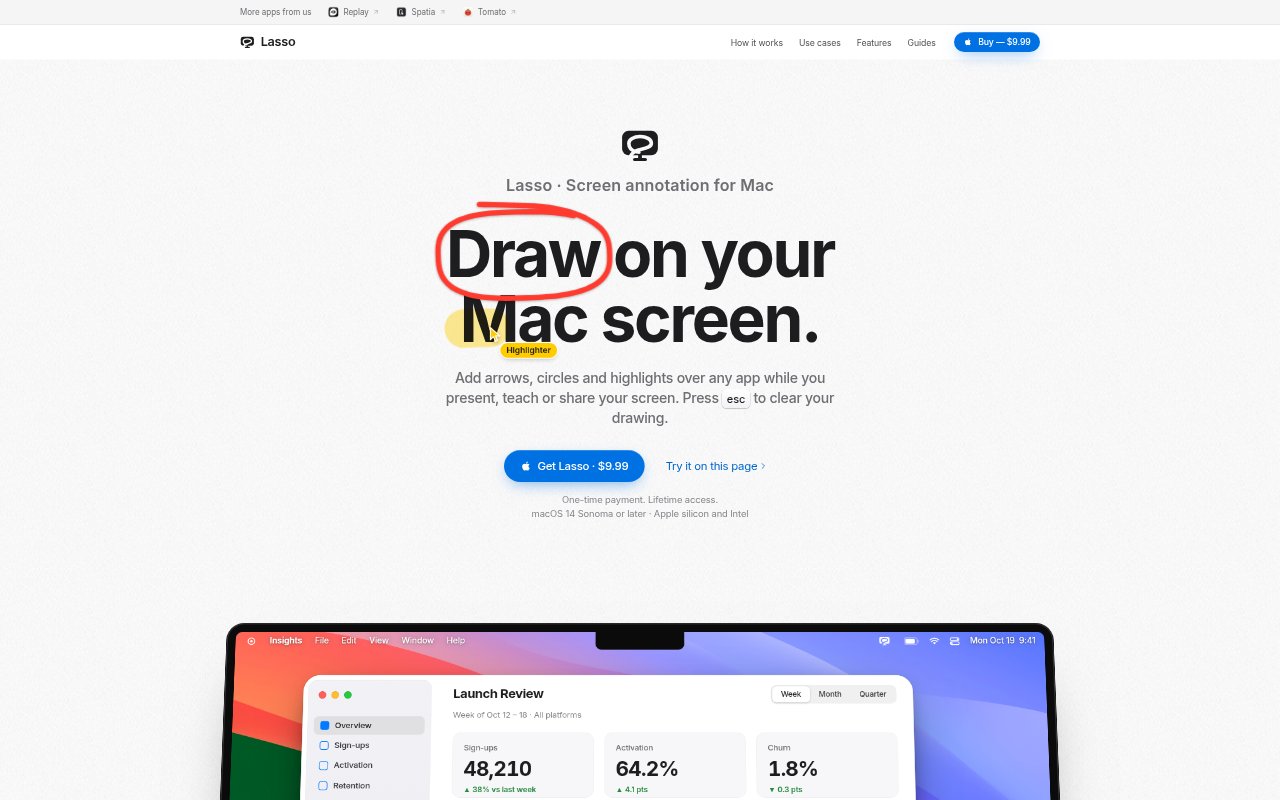
Lasso is a native Mac app for drawing annotations over live apps, presentations, video calls and other screen content. It is designed for people who need to point out details while presenting, teaching, giving feedback or working with an AI agent. You can capture annotated screenshots to copy, save or share, and connect compatible AI clients through a local MCP server. It runs on macOS 14 or later and costs $9.99 as a one-time payment.
Lasso Features:
Live Screen Drawing: Use a keyboard shortcut to place a transparent drawing layer over apps and displays, then press Escape to clear your marks.
Annotation Tools: Circle details, highlight text, add arrows and lines, number steps, or use text, shapes, a laser pointer and an eraser.
Annotated Screenshots: Press S to capture your marks with the screen, then copy, save, share or edit the screenshot preview.
Browser Sharing: Create a link that opens a screenshot in a browser for 24 hours, with no account or Lasso app required for viewers.
AI Agent Connection: Connect clients that support local stdio MCP servers so they can capture annotated screens and draw marks over app windows.
Pages and Whiteboards: Start a fresh drawing page or whiteboard and return to earlier pages without losing the annotations already made.
Lasso Benefits:
Clearer Explanations: Visible circles, arrows and numbered steps help others identify the exact detail you mean without relying on spoken directions alone.
Faster Feedback: A marked-up screenshot can replace a long written description when pointing out a design detail or interface issue.
Fewer Workflow Steps: Capture, mark up and share from the screen you are already using, without opening a separate editor to add annotations.
Less Presentation Interruption: The drawing layer can be cleared when you finish, leaving the screen ready to continue using without lingering marks.
Low Commitment Cost: A single payment provides lifetime access without a subscription, account, license key or activation process.
Use Cases:
Live Demonstrations: Circle a control or highlight a line of text while presenting an app over a shared display in a meeting.
Online Lessons: Point to a specific part of a screen during a remote lesson so students can follow the explanation.
Design Feedback: Mark up an interface screenshot with arrows and circles to show a colleague which details need attention.
Quick Team Messages: Capture a marked screen and send it in Slack or Messages when a screenshot communicates more clearly than a written description.
AI Agent Guidance: Use a compatible AI client to inspect an annotated screen or place arrows and numbered steps over an app window.