
What is Mago Studio?
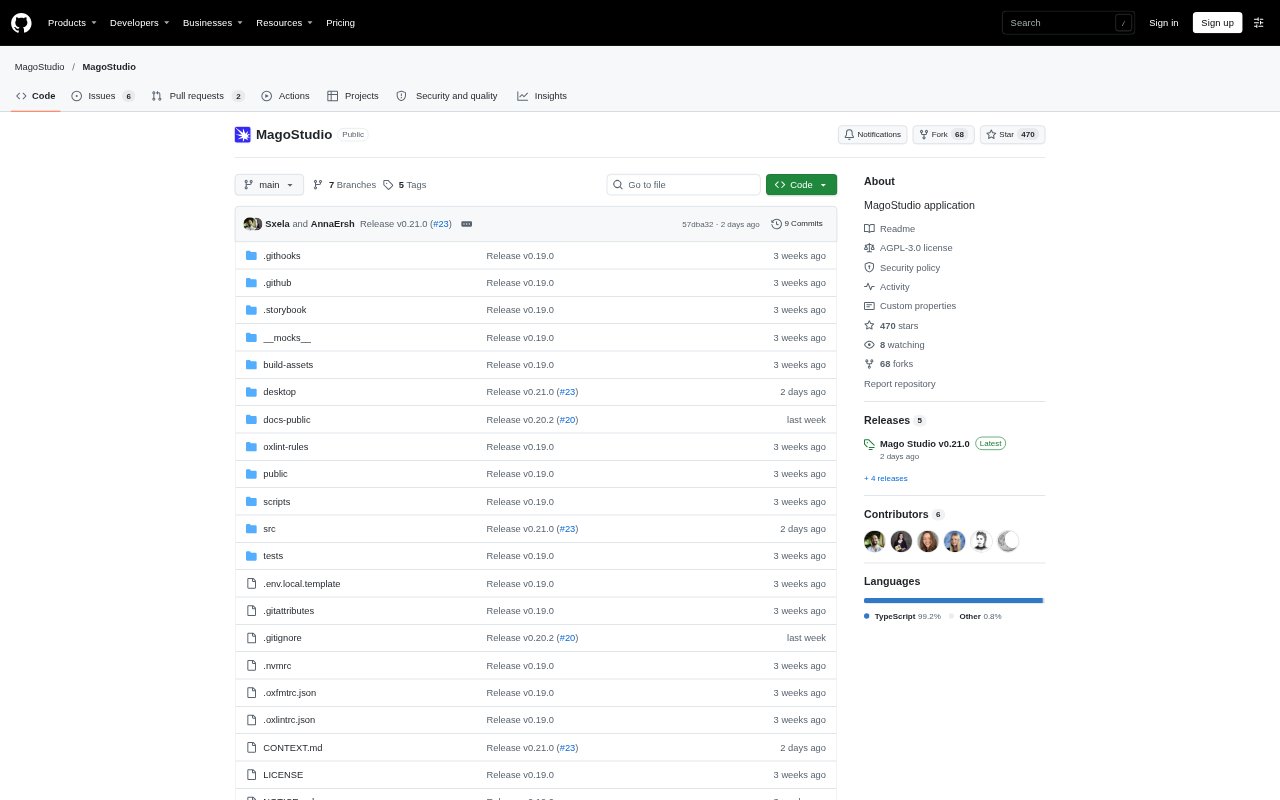
Mago Studio is a desktop AI video editor for filmmakers, creators and teams working with AI-generated or existing footage. It supports a script-to-video workflow and frame-accurate edits, with projects stored locally. Renders can run on a GPU through ComfyUI or use Mago Cloud models when you sign in. The app runs on Windows, macOS and Linux, and local rendering is optional, so you can use cloud rendering without setting up a GPU.
Mago Studio Features:
Script to Video: Build a project from a script, then develop its cast, shot list and storyboards into connected scenes.
Frame Range Editing: Choose specific frame ranges to transform, so changes can target a selected part of a video.
Masked Video Changes: Use masks to limit edits to part of a video, including relighting, character replacement and style transfer.
Local Model Rendering: Render through ComfyUI on your own GPU, using the bundled setup or connecting an existing ComfyUI installation.
Cloud Model Rendering: Sign in to use Mago Cloud models alongside local models, with no GPU required for cloud rendering.
Timeline and Review: Arrange shots and layers on a frame-accurate timeline, with project versioning and review tools.
Mago Studio Benefits:
Local Project Control: Keeping project files and videos on your machine gives you control over what stays local and what gets sent for cloud rendering.
Focused Revisions: Targeting frame ranges and masked areas helps you make localized changes without restyling an entire video.
Consistent Scenes: Carrying each shot forward from the previous one helps maintain continuity as you build a sequence.
Flexible Rendering: Choose local rendering when you have a compatible GPU, or use cloud models when local hardware is unavailable.
Clearer Reviews: Versioning and review tools help keep feedback and iterations organized across a video project.
More Precise Editing: A frame-accurate workflow makes it easier to work on specific moments rather than treating footage as a single clip.
Use Cases:
Episode Development: Turn a script into a cast, storyboard and sequence of connected shots for a series episode.
Footage Restyling: Transform existing footage into a different visual style while preserving the source video as a starting point.
Targeted VFX Changes: Use masks to change a character or other selected area without applying the edit to the whole frame.
Lighting Adjustments: Relight selected footage as part of a visual-effects pass on a scene or shot.
GPU-Free Rendering: Work on AI video edits and render with cloud models when you do not have a compatible local GPU.