

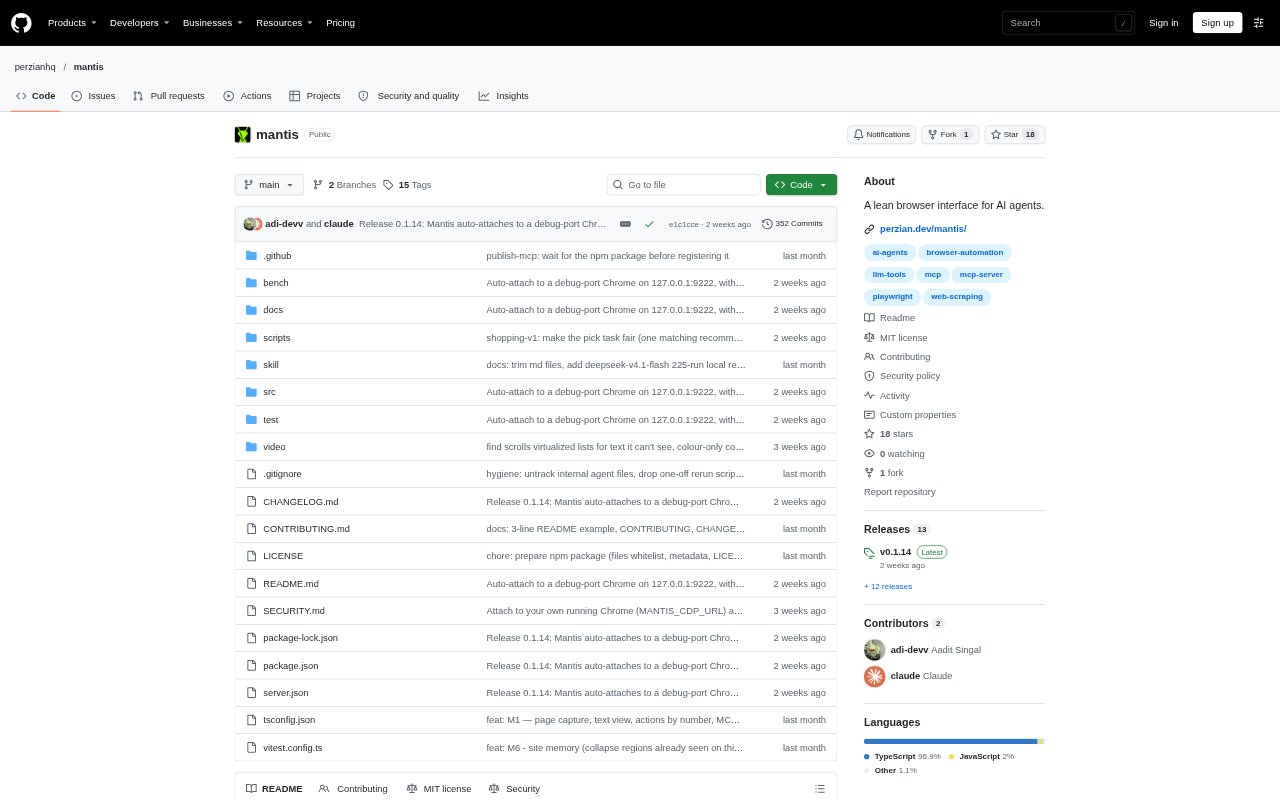
What is Mantis?
Mantis is an open-source MCP server that lets AI agents interact with websites through a browser and receive compact, numbered text instead of screenshots. It is for developers working with Claude Code, Codex, Cursor, or another compatible agent, and it can also be used from the command line to read a page. Mantis runs Chromium or can attach to a dedicated Chrome profile where sign-ins persist.
Mantis Features:
MCP Integration: Mantis works as an MCP server with Claude Code, Codex, Cursor, and other agents.
Numbered Page Text: It reads web pages and returns short text with numbered controls that an agent can reference.
Incremental Updates: After an action such as a click, Mantis can return the page changes rather than repeat unchanged content.
Browser Actions: Agents can use Mantis to open pages, navigate, click controls, and fill forms in Chromium.
Existing Chrome: Mantis can attach to a dedicated Chrome profile, using its open tabs and saved sign-ins.
Human Checkpoints: Login and bot-wall steps can be handed to a person through a checkpoint that requires a display.
Mantis Benefits:
Lower Input Use: Compact page descriptions can reduce the amount of website content an agent needs to process compared with screenshots or accessibility trees.
Less Repeated Context: Returning only what changed can help keep multi-step browsing focused on new information.
Clearer References: Numbered controls give agents concise references for choosing what to click on a page.
Persistent Sign-Ins: Using a dedicated Chrome profile lets you keep sign-ins between sessions instead of starting each browsing task from a fresh profile.
Measured Efficiency: In its published tests, Mantis used 29–57% fewer input tokens than an accessibility-tree approach across long and short task groups, with accuracy equal or close to that comparison.
Use Cases:
Website Research: Ask a coding agent to read and extract information from pages on public websites.
Multi-Page Navigation: Have an agent move through a public site to find a particular page or piece of information.
Web Form Filling: Use an agent to enter information into forms on public websites.
Signed-In Browsing: Let an agent work in your existing Chrome tabs when a task needs a site you have signed into.
Agent Browser Testing: Compare an agent’s website-reading, navigation, and form-filling workflow with screenshot- or accessibility-tree-based browser tools.