

What is Mastershot Studio?
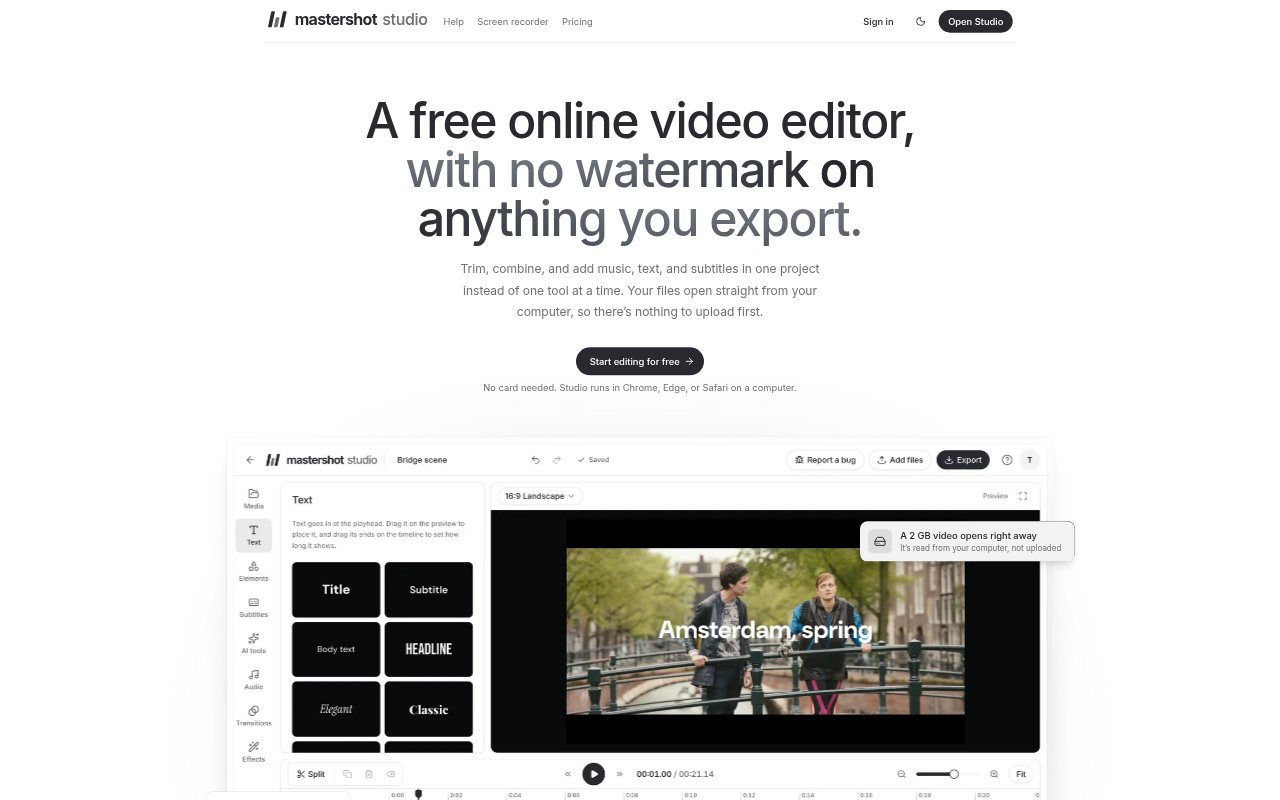
Mastershot Studio is a browser-based video editor for people who want to assemble and finish videos on a computer. It works in Chrome, Edge, or Safari, with video, photo, and audio files opened directly from the computer rather than uploaded first. The editor combines timeline tools with computer-run AI features, and exports MP4 files without a watermark, including at up to 4K resolution.
Mastershot Studio Features:
Timeline Editing: Arrange clips on a timeline, trim or split them, and place text, pictures, and music on separate rows.
AI Subtitles: Generate subtitles timed to individual words, correct the text, and choose styles such as Bold, Highlight, or Boxed.
Magic Cut: Find long pauses and filler words, review the marked sections, and remove selected parts together.
Background and Faces: Remove or blur a video background, or blur detected faces while choosing which person remains visible.
Audio Tools: Add music with volume and fade controls, record a voiceover, and reduce hum or background noise under speech.
Export and Storage: Export watermark-free MP4 video at up to 4K, while Pro adds 100 GB of storage and share links for screen recordings.
Mastershot Studio Benefits:
Fewer Editing Steps: Completing trimming, joining, music, and cropping in one project avoids moving a video between separate editing sites.
More Private Editing: Keeping source files on the computer means they do not need to be uploaded to use the editor or its AI tools.
Clearer Speech: Word-timed captions and audio cleanup can make spoken videos easier to follow, even when viewers cannot play sound.
Flexible Exports: Watermark-free exports and multiple aspect ratios let creators prepare videos for different publishing formats.
Lower Entry Cost: The free editor includes 4K export and AI tools, so users can finish videos without paying to export or running out of credits.
Use Cases:
Social Video Clips: Edit a short vertical video for TikTok, Reels, or Shorts by trimming footage, adding captions, and choosing a 9:16 layout.
YouTube Videos: Combine recorded clips, add titles and music, and export a wide 16:9 video for a YouTube channel.
Talking-Head Edits: Use Magic Cut to review pauses and filler words in a presentation, interview, or direct-to-camera recording.
Screen Recordings: Record a screen in Chrome and edit the result, then use Pro to share a recording link for browser viewing and comments.
Photo Slideshows: Arrange photos with music, text, transitions, and pan-and-zoom movement to create a simple video sequence.