

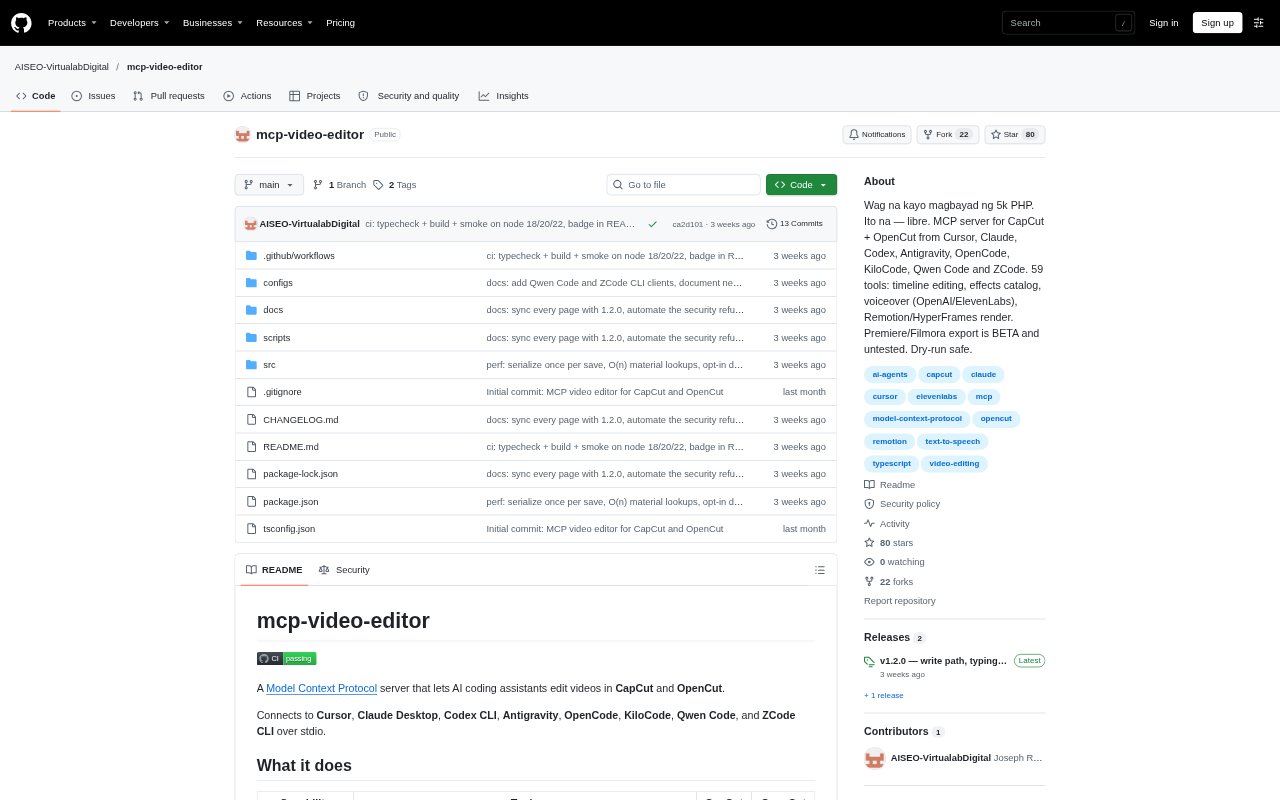
What is MCP Video Editor?
MCP Video Editor is a local Model Context Protocol server that connects AI coding assistants to CapCut and OpenCut projects. It lets compatible clients inspect projects and make changes to timelines, clips, text, audio, effects, and exports through tools. It is for creators and video editors who want to work on editor projects from Cursor, Claude Desktop, Codex CLI, or another supported MCP client.
MCP Video Editor Features:
Project Management: Project tools let an assistant list, create, open, save, duplicate, and delete CapCut or OpenCut projects, with deletion requiring confirmation.
Timeline Editing: Timeline controls add and remove tracks, place or move clips, split and trim footage, change playback speed, and adjust track visibility.
Text and Effects: Visual tools create and style text overlays, set their position, and add transitions, filters, effects, stickers, animations, and curated face effects.
Audio Editing: Audio tools add clips, adjust clip or track volume, apply fades, split audio, and run denoising on audio.
Voice Generation: The generate_voice tool creates MP3 voiceovers using OpenAI or ElevenLabs, with the corresponding provider API key configured.
Rendering and Export: Rendering tools create videos or render projects, configure export parameters, list export profiles, and check the status of render tasks.
Inspection and Safety: Clients can query project and timeline state, while write tools default to dry-run and physical writes create backups before overwriting existing projects.
MCP Video Editor Benefits:
Safer Editing: Dry-run defaults let users review proposed project changes through the assistant before those changes are written to editor files.
Recoverable Changes: Backups made before writes and deletions give users a copy to return to if a project change needs to be undone.
Shared Workflow: Using the same server for CapCut and OpenCut can reduce the need to learn separate assistant toolsets when working between editors.
Less Manual Checking: Querying project state and timeline details in the client helps users verify edits without repeatedly inspecting the project by hand.
Faster Voiceover Assembly: Generating an MP3 voiceover through the editing workflow can save a separate step when assembling a video with narration.
Use Cases:
Captioned Social Videos: Add and position text overlays on a CapCut or OpenCut timeline for short clips that need titles, labels, or on-screen captions.
Footage Assembly: Organize a draft by adding tracks, placing clips, trimming footage, splitting shots, and adjusting playback speed from an AI client.
Audio Cleanup: Prepare a video soundtrack by adding audio, adjusting levels, applying fades, splitting sections, or running denoising.
Narrated Videos: Generate an MP3 voiceover with OpenAI or ElevenLabs, then add audio to a project alongside its video and other tracks.
Project Review: Inspect clips, tracks, text, effects, or overall project state while checking a draft before choosing to write changes to disk.