

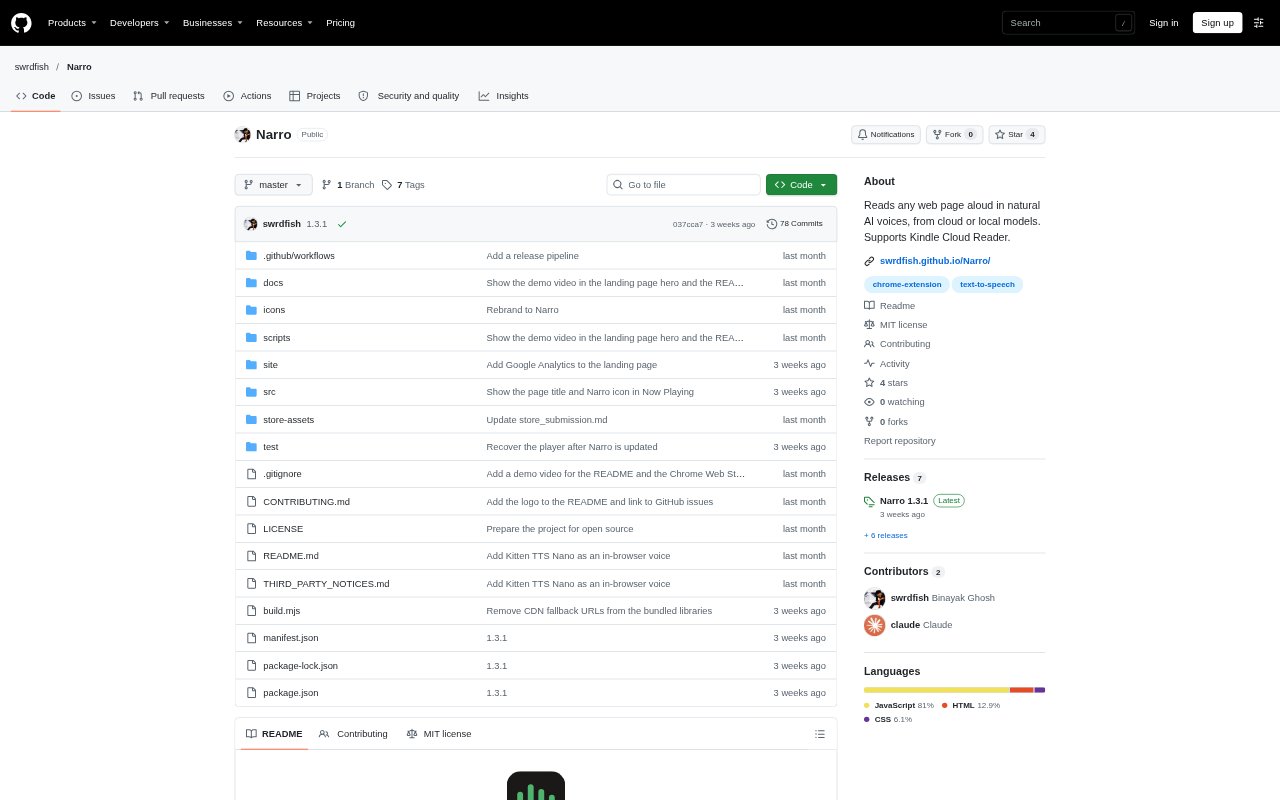
What is Narro?
Narro is a Chrome extension that turns the text on a web page into spoken audio and highlights each sentence as it plays. It offers cloud voices that use your own API key, along with voices that run in the browser or your computer’s built-in system voices. Readers can control playback from a floating player or the extension popup, and use it with Kindle Online Reader, where it recognizes text on book pages using on-device OCR.
Narro Features:
Sentence Highlighting: Narro highlights the sentence being spoken and scrolls the page to follow along without changing the page content.
Voice Engines: Choose cloud speech from OpenAI, ElevenLabs, Google Gemini, or OpenRouter, or use a configured OpenAI-compatible local server.
On-Device Voices: Run Kokoro, Supertonic, Piper, Kitten TTS, or built-in system voices on your computer, with downloaded speech models available offline.
Playback Controls: Play, pause, stop, move between sentences, and adjust speed from 0.5× to 3× while preserving pitch.
Start and Resume: Select text and choose Read aloud from here, or return to the last saved reading position on a page.
Kindle Reading: Recognize text on visible Kindle Online Reader pages with on-device OCR, then read it aloud and turn pages automatically.
Narro Benefits:
Keep Your Place: Sentence highlighting, page scrolling, and saved positions make it easier to follow along and pick up a reading session later.
Choose Your Privacy: Local voices keep the text on your computer, while cloud options let you choose a provider and use your own API key.
Read at Your Pace: Adjustable speed and sentence-level navigation let you slow down, move ahead, or revisit a passage without restarting the page.
Stay in the Book: Automatic Kindle page turns let listening continue across pages without requiring you to advance each one yourself.
Avoid Repeated Setup: Saved page positions help you return to where you stopped instead of searching for the same passage again.
Use Cases:
Listen to Articles: Play a long web article aloud while following its sentences on screen or letting the page scroll as you listen.
Resume Web Reading: Return to a page you previously listened to and continue from its saved reading position.
Skip to a Passage: Select a paragraph or sentence on a web page and start listening from that point rather than the beginning.
Listen to Kindle: Use OCR and automatic page turning to listen to a Kindle Online Reader book, with English text recognition.
Read Without Cloud: Listen to web pages with an in-browser or system voice when you want the text to stay on your computer.