

What is Palomino?
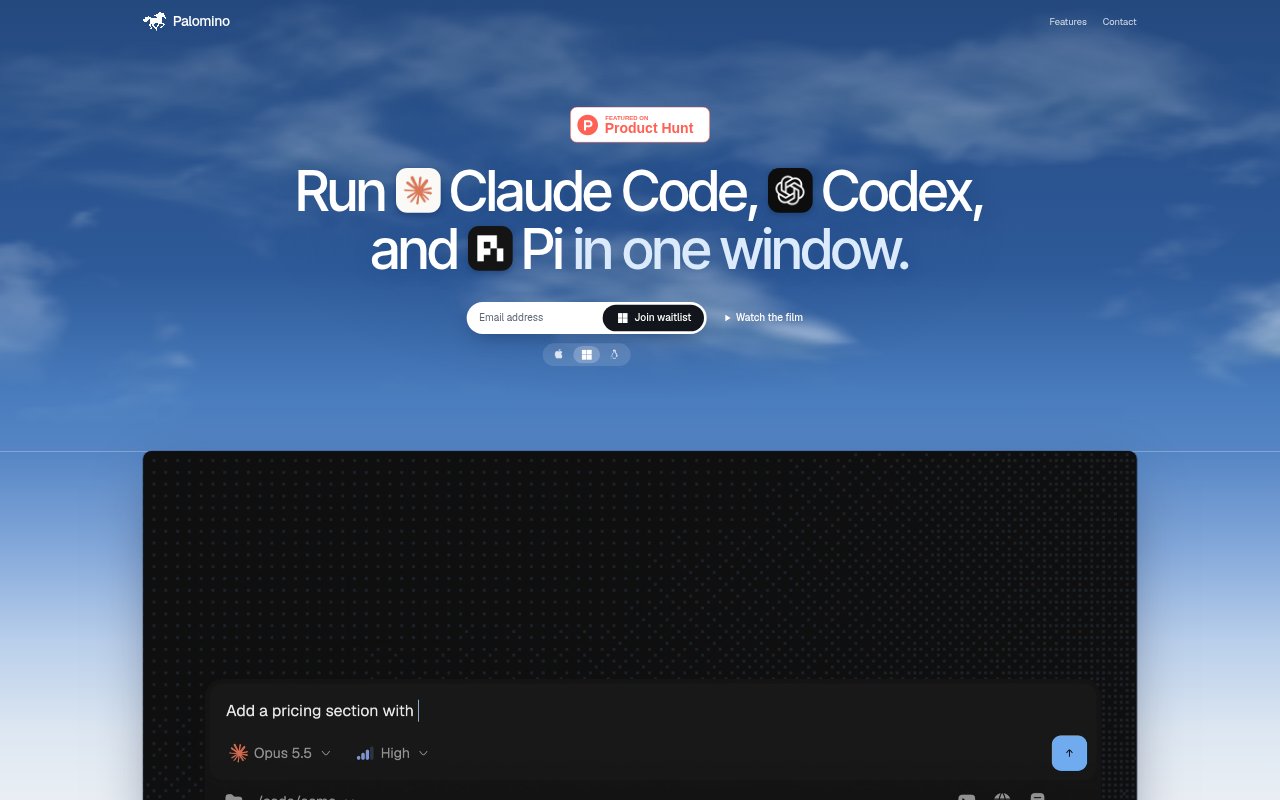
Palomino is a native Mac app for running Claude Code, Codex, Pi, and fx in one window. It places agents alongside terminals, a browser, and files, with tabs and panes for arranging work and viewing agents side by side. Built in Rust and rendered on the GPU, it gives developers a desktop workspace for coding agents. It offers unlimited workspaces, agents, and panes, limited by what the Mac can run, and requires no account.
Palomino Features:
Agent Options: Run Claude Code, Codex, Pi, and fx from Palomino, bringing these coding agents together in one native Mac app.
Side-by-Side Agents: Keep agents visible next to one another, using tabs and panes to organize the work inside the window.
Terminal Access: Use terminals alongside agents for command-line work, including tasks such as running tests or starting a development server.
Browser and Files: Keep a browser and your files beside agents and terminals, so these parts of a coding workspace are available together.
Unlimited Workspaces: Create as many workspaces, agents, and panes as your Mac can run, without a stated account requirement.
Native Mac App: Palomino is written in Rust and uses GPU rendering for its interface on Mac.
Palomino Benefits:
Less Window Switching: Keeping agents, terminals, files, and a browser together can reduce the need to move between separate apps while working.
Compare Agent Work: Side-by-side access makes it easier to follow multiple agent sessions at once and keep their work distinct.
Flexible Setup: Workspaces and panes can be arranged around the job at hand, rather than requiring one fixed layout for every task.
No Account Setup: Because Palomino requires no account, users can start with the app without first creating a Palomino login.
Room to Expand: The stated allowance for as many workspaces and agents as the Mac can run gives users room to scale their setup as needed.
Use Cases:
Run Project Tests: Keep an agent and terminal in view while running a project’s test command and checking the resulting output.
Start Local Servers: Use a terminal to start a development server while keeping the browser and relevant files available in the same app.
Work on Features: Use a coding agent alongside project files and a terminal while building or updating a feature.
Review Code Changes: Keep an agent session and project materials close at hand while reviewing a build or working through code changes.
Manage Agent Sessions: Arrange multiple coding-agent sessions in tabs or panes when several tasks need attention in the same work period.