What is Panelize?
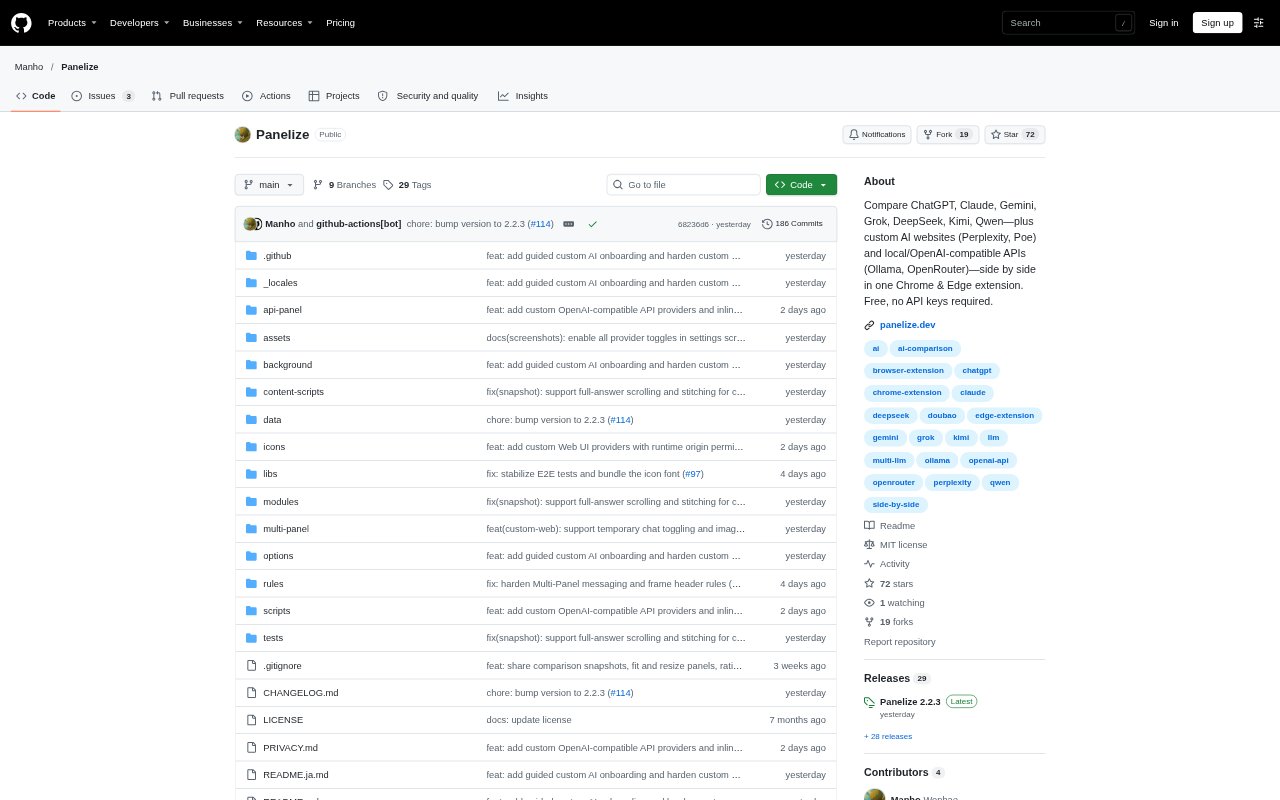
Panelize is a free, open-source Chrome and Edge extension for sending one prompt to multiple AI chat services and viewing their replies side by side. It uses your existing provider logins for built-in panels, and can also include custom AI websites and OpenAI-compatible APIs. It is for people who compare AI responses while writing, researching, coding, or working with different models.
Panelize Features:
Send to Multiple AIs: Type a prompt once and send it to built-in services such as ChatGPT, Claude, Gemini, Grok, DeepSeek, and Qwen at the same time.
Provider Website Panels: Each built-in panel loads the provider's real website, using your existing login and keeping its model picker and chat history.
Flexible Layouts: Choose from 22 layouts, including arrangements for two-way comparisons or up to 12 AI panels on screen.
Custom AI Connections: Add AI chat websites such as Perplexity or Poe, or connect local and cloud OpenAI-compatible APIs such as Ollama and OpenRouter.
Reusable Prompt Library: Save prompts for reuse across providers, with variables such as {topic} to customize a prompt before sending it.
Image Sharing: Capture the current view or full answers as a PNG, with an editable prompt headline, to download or copy.
Privacy Controls: Switch supported providers to temporary chat with one click; optional API keys are stored locally in the browser.
Panelize Benefits:
Less Repetition: Avoid copying the same question between separate AI tabs, leaving more attention for reviewing the answers.
Clearer Differences: Seeing responses together makes it easier to notice where models agree, diverge, or offer different approaches.
More Familiar Workflows: Using provider websites with your own logins lets you retain the accounts, model choices, and conversations you already use.
Flexible Comparisons: Combining web chats with local or cloud APIs lets you compare services without limiting the view to a fixed provider lineup.
Easy Sharing: A single image makes a multi-provider comparison easier to keep as a record or pass along to others.
Use Cases:
Compare Writing Drafts: Ask several models for a draft of the same announcement, then review their wording side by side before choosing an approach.
Check Coding Advice: Send a coding question or proposed fix to several AI services and compare their explanations before deciding what to verify.
Review Research Answers: Ask multiple models about a research topic, note where their answers differ, and investigate claims that need checking.
Test Local Models: Put a local Ollama or LM Studio endpoint alongside web-based AI chats to compare their responses to the same prompt.
Share Team Comparisons: Capture a prompt and its AI responses as an image when you want to discuss or save the comparison.