
What is Penmentor?
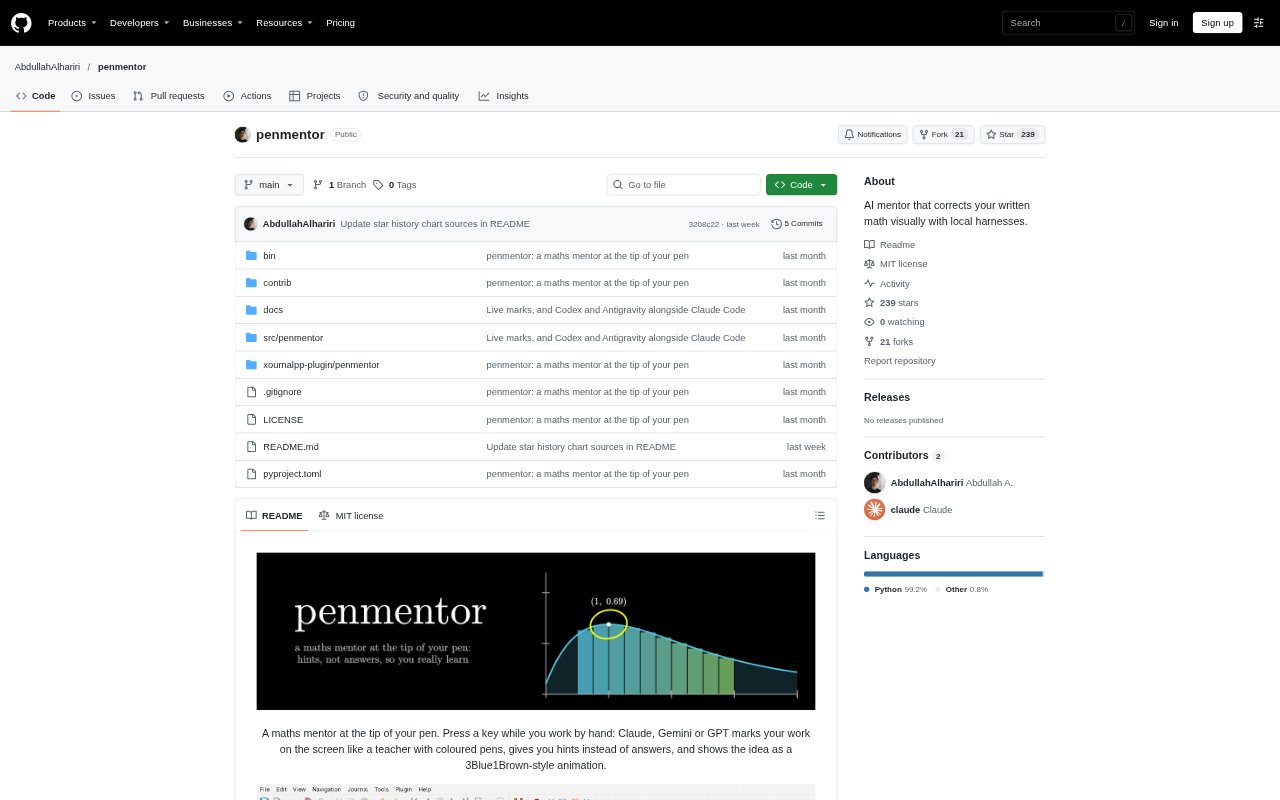
Penmentor is a handwriting-focused maths mentor for people who work through problems by hand, especially in Xournal++ on Linux with X11. A keyboard shortcut sends the page to Claude Code, Codex or Antigravity CLI, which can mark correct work, point out mistakes and offer hints instead of giving the full answer. It can also turn a selected part of a problem into an interactive mathematical animation, helping learners connect written steps with visual explanations.
Penmentor Features:
Handwriting Feedback: Penmentor marks a learner’s handwritten work on the page, ticking correct lines and circling the first mistake.
Hint Ladder: Hints can progress from a nudge to naming a technique and then showing a faint version of the next line.
Error Practice: Learners can work through find-the-error drills and questions about which technique fits a problem.
Recall Questions: The tool asks questions about key steps, which learners can answer by typing or writing.
Interactive Animations: Selecting and boxing part of a problem can generate an interactive manim animation, including adjustable bounds and values.
AI Agent Support: Penmentor runs with Claude Code, Codex or Antigravity CLI and lets users choose an installed agent and model in Settings.
Penmentor Benefits:
Learn From Mistakes: Seeing where an error begins makes it easier to review the reasoning that led to it, rather than only checking a final result.
Keep Doing the Work: Progressive hints give learners a next step while leaving them responsible for completing the solution.
Connect Ideas Visually: An animation can make a mathematical relationship easier to inspect than written steps alone.
Stay With Your Notes: Feedback appears on the working page, so learners can refer to their original steps as they continue.
Reuse Your Subscription: Using an installed command-line agent on its existing subscription avoids needing a separate Penmentor model plan.
Use Cases:
Check Calculus Work: A learner solving an integral by hand can request feedback and see where a sign or other mistake first appears.
Practice a Technique: Someone unsure which method applies can answer a technique-selection question before continuing a problem.
Review Key Steps: A student can test their understanding of important steps by answering questions about their handwritten solution.
Study an Integral: A learner can box an integral and explore an animation that shows Riemann sums changing as the bounds move.
Work in Xournal++: A pen-tablet user can trigger feedback from a keyboard shortcut while working on a page in Xournal++.