

What is sandbox-mcp?
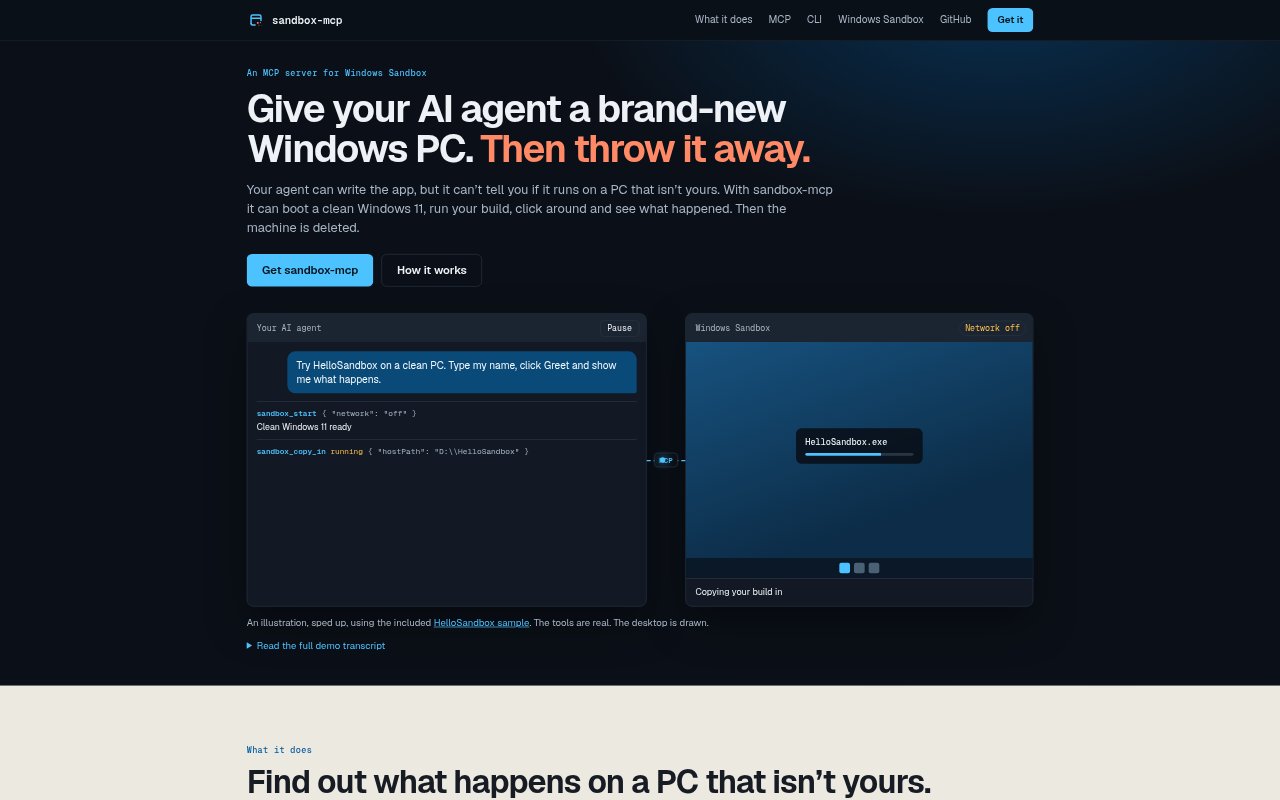
sandbox-mcp gives an AI agent or command-line user access to a disposable Windows 11 desktop for checking how apps behave on a clean PC. It can start the sandbox, copy in a build, launch it and interact with the app; the machine is deleted when the sandbox closes, while screenshots are kept. Use it on Windows 11 version 24H2 or later, with Pro, Enterprise or Education. The MCP setup needs Node.js 20 or later, while the standalone CLI does not.
sandbox-mcp Features:
Disposable Windows: Start a clean Windows 11 sandbox with networking off, run an app in it and delete the machine when the session ends.
MCP and CLI: Control the same sandbox engine through an MCP server with 27 tools or use the standalone sbx command-line interface.
UI Automation: Inspect an app's UI tree, set values and invoke controls, then capture screenshots of the running app.
Build Testing: Copy in a build and run a test that can enter a name, click a button, wait for an exact label and compare a saved file.
Installer Testing: Install and uninstall an app, with screenshots available when an installation dialog hangs or the uninstaller leaves items behind.
File Inspection: Run a file in the sandbox with the network disabled and inspect what it does, as an initial check rather than full malware analysis.
sandbox-mcp Benefits:
Catch Environment Issues: Testing on a clean Windows installation can reveal missing runtimes that a developer's already-equipped PC might conceal.
Check Real Behavior: A test can check what an app actually displays and whether a saved file matches expectations, rather than relying only on a successful launch.
Review Cleanup: Seeing the results of both installation and removal helps identify leftover items and dialogs that would otherwise be easy to miss.
Keep Tests Focused: Deleting the sandbox after a run leaves the host PC separate from the test environment, while retained screenshots provide a record of what happened.
Use Cases:
Fresh PC Checks: Have an agent launch a Windows desktop app on a clean machine to check whether it starts and responds without developer-installed runtimes.
Installer Review: Check a Windows installer by running its install and uninstall steps, then look for hangs or files the uninstaller leaves behind.
UI Flow Testing: Ask an agent to enter sample text, activate a control and confirm the resulting label or saved-file content.
Untrusted File Triage: Open a suspicious file such as an emailed script with networking disabled to get an initial view of its behavior.