
What is ScsSubst?
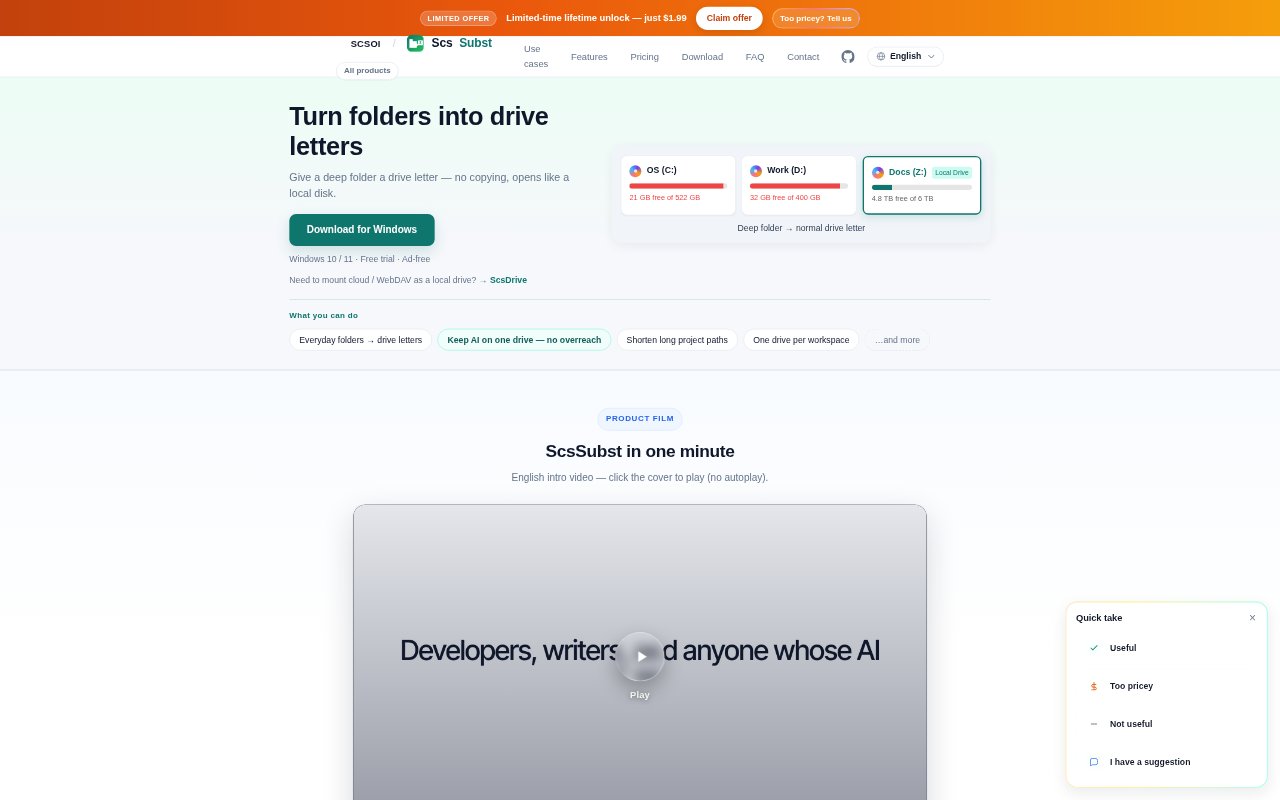
ScsSubst maps folders already stored on a Windows PC to drive letters, so they can be opened in Explorer like local disks. It is aimed at Windows users who want simpler access to deeply nested folders, separate drive letters for different workspaces, or a dedicated folder for an AI tool to use. It supports Windows 10 and 11, offers a seven-day trial, and requires a license to continue after the trial.
ScsSubst Features:
Folder Mounting: Choose a folder and an available drive letter, then connect to map that folder without copying its contents.
Startup Remounting: Save mappings and optionally have ScsSubst relaunch them when you sign in to Windows.
Multiple Mappings: Set up several folder mappings, each with its own drive letter.
Explorer Access: Open mapped folders in File Explorer as drive locations, with shorter paths than their original folder addresses.
AI Workspace Drive: Map a dedicated folder and direct an AI tool or agent to work there; this is not an operating-system-level sandbox.
Advanced Options: Adjust options such as whether elevated applications can see mappings and whether the Recycle Bin is available.
Portable App: Use the portable ZIP build or the installer on 64-bit Windows 10 or 11; the app uses Windows APIs rather than a third-party file-system driver.
ScsSubst Benefits:
Quicker Navigation: A short drive location can make frequently opened, deeply nested folders easier to reach and remember.
Fewer Path Errors: Working from a drive letter reduces the need to repeatedly enter or locate a long folder path.
Clearer Workspaces: Distinct drive letters can help keep separate projects or working folders easy to identify.
More Focused AI Work: A dedicated workspace can make it clearer which folder an AI tool should use and limit accidental changes to that folder.
Less Repeating Setup: Restoring saved mappings at sign-in avoids manually reconnecting the same folders each time Windows starts.
Use Cases:
Deep Project Folders: Map a nested project directory to a drive letter when its full path is cumbersome to navigate or type.
AI Agent Workspace: Create a dedicated folder for an AI agent and point the agent to its mapped drive when it works on local files.
Separate Client Work: Assign different drive letters to client folders so each work area has a distinct location in Explorer.
Everyday Folder Access: Map a frequently used local folder to a memorable drive letter for routine browsing and file work.
Elevated Applications: Use the visibility option when a mapped folder needs to be accessible to an application running with elevated permissions.