
What is Ultron AI?
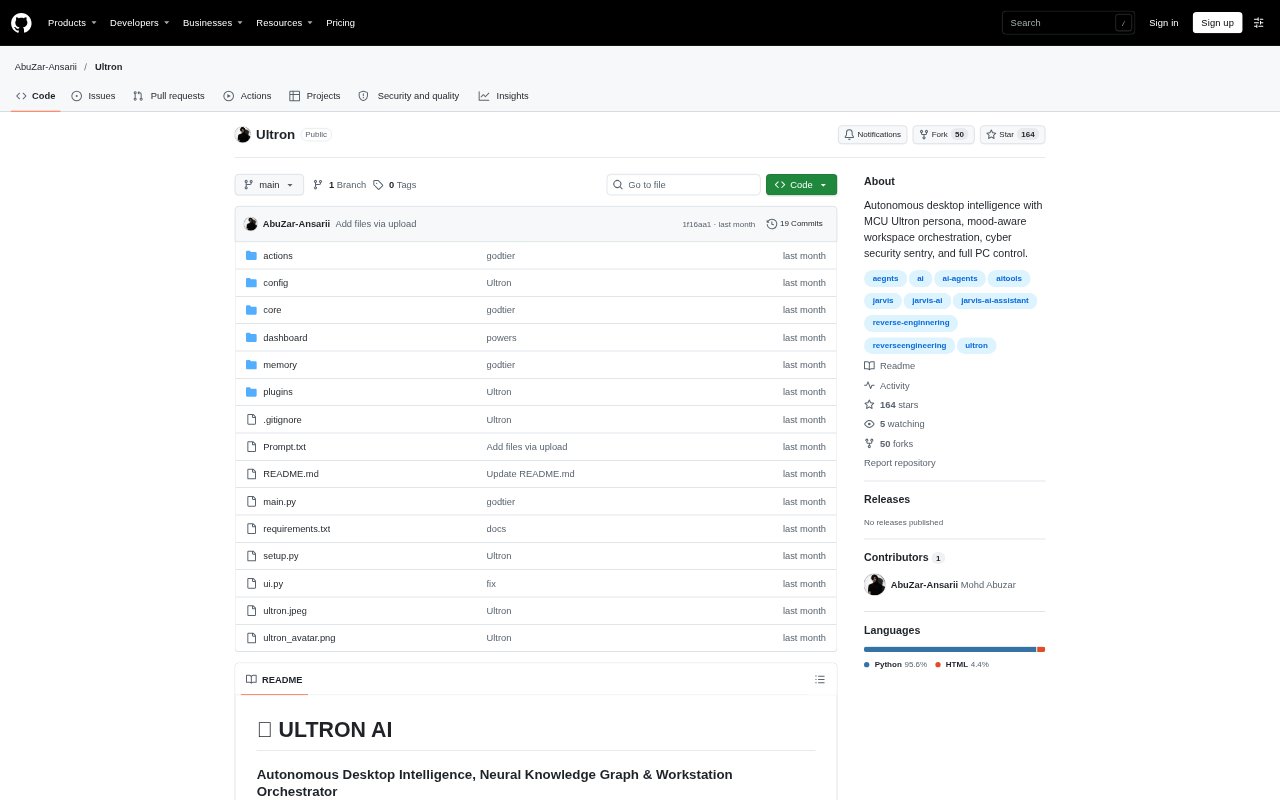
Ultron AI is a voice-first desktop assistant that can control workstation tasks, respond to spoken requests, and coordinate apps and system settings. It is designed for people who want computer control and workspace setup through voice, including developers, researchers, gamers, and content creators. It runs on Windows, macOS, and Linux, and supports Gemini, Ollama, and OpenAI as language model providers.
Ultron AI Features:
Voice Desktop Control: Ultron interprets spoken requests and uses native workstation actions for tasks such as controlling the mouse and keyboard, opening apps, and preparing web workflows.
Workspace Modes: Coding, gaming, research, cyber audit, cinema, and creative studio modes can arrange applications and adjust settings such as audio, display brightness, and lighting.
Gesture Controls: OpenCV hand tracking recognizes gestures to wake the assistant, lock the workstation, control media playback, change tracks, and adjust system volume.
Knowledge Graph: A local SQLite knowledge graph stores concepts and relationships, with semantic search that can retrieve remembered details even when a query uses different wording.
Dynamic Action Creation: Ultron can generate Python actions, check their syntax and security heuristics, and load them into the running application without a restart.
Smart Room Controls: Home Assistant integration synchronizes room lighting with presets for coding, relaxation, alert conditions, blackout, and daylight.
Ultron AI Benefits:
Fewer Setup Steps: A spoken workspace request can bring together the apps and settings for a task, reducing the need to prepare each part of a workstation manually.
Hands-Free Operation: Voice commands and recognized hand gestures offer ways to control common computer and media actions without reaching for a keyboard or mouse.
Easier Recall: Semantic search helps users find stored information from an approximate description rather than having to remember the exact terms they used.
Adaptable Actions: The ability to create and load new actions can help tailor workstation automation to requests beyond the built-in capabilities.
Unified Workspace: Coordinating applications, system settings, and supported room lighting can make a change of activity less disruptive.
Use Cases:
Coding Sessions: Set up a development workspace by opening VS Code and a terminal in the active project directory, then applying the coding mode settings.
Research Sessions: Prepare a study setup by opening research and note-taking applications, setting a quieter audio level, and choosing warm lighting.
Gaming Setup: Launch Steam and Discord, adjust display and audio settings, and apply the gaming workspace configuration before playing.
Creative Production: Prepare a content-creation workspace with tools such as Premiere or Blender, YouTube Studio, and the associated studio settings.
Network Audits: Use cyber audit mode to open a developer terminal and run network vulnerability and port audits.