

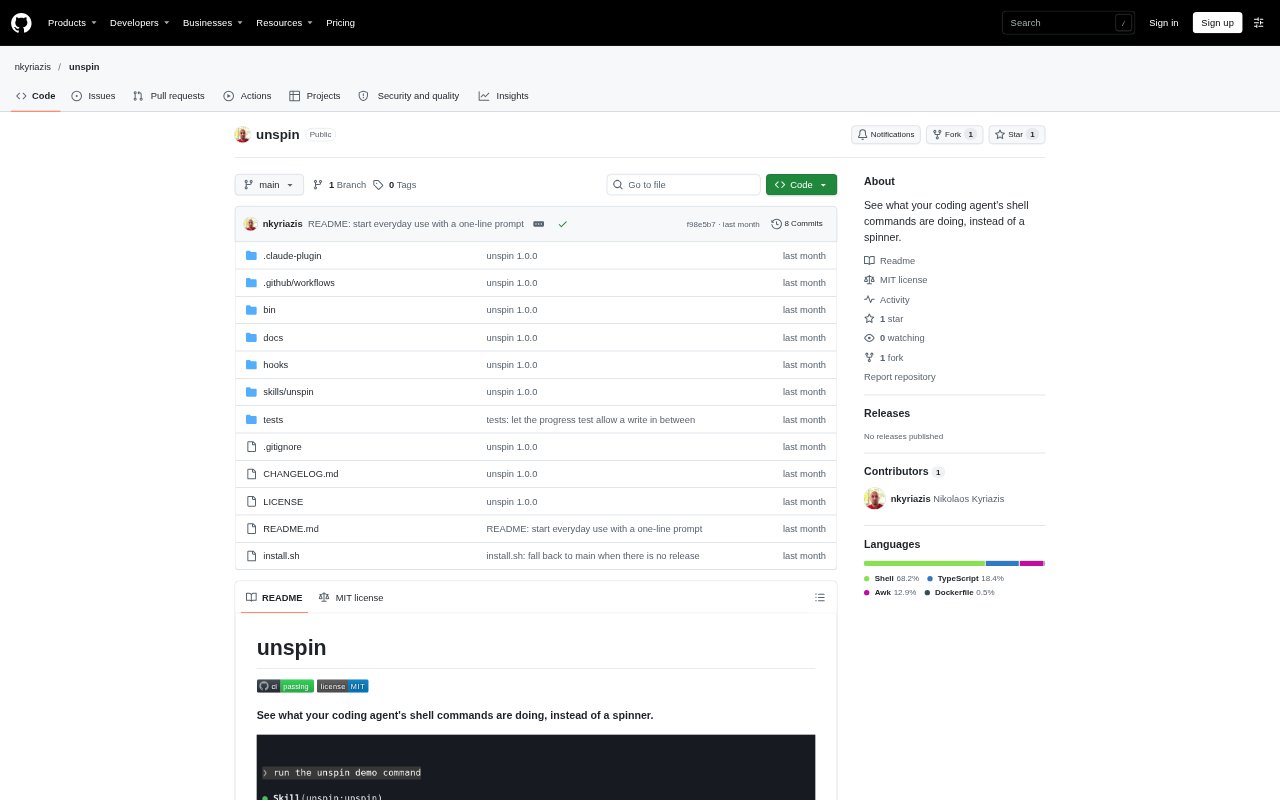
What is unspin?
unspin is a shell-command progress display for coding agents, designed to replace an opaque spinner with named steps and live status. It gives Claude Code users a view of batched or long-running commands, including progress, elapsed time, estimates, and failures. The helper can also report steps in other coding agents, terminal status lines, tmux, or a separate terminal, so developers can keep command activity visible where they work.
unspin Features:
Live Step Tracking: Commands can be divided into named steps, with the active step and overall position shown as the work runs.
Progress Bars: Steps can display counts, percentages, or units such as file sizes, along with elapsed time and an estimated time remaining.
Command Output Modes: A command can show its latest output line, read progress counts from its output, or keep output in a log and print a tail if it fails.
Batch And Parallel Jobs: Loops can process items with a shared progress bar, while background commands can each appear on their own row.
Timed Command Waits: A wait step retries a command until it succeeds and can show a progress bar for the wait duration.
Flexible Status Display: Progress can appear in Claude Code, status-line tools, a second terminal, or tmux, and steps can also be written to stderr.
unspin Benefits:
Less Guesswork: A named step and its progress make it easier to understand what a long shell command is doing before it finishes.
Faster Diagnosis: Visible counts, current items, and failure tallies help developers see where a batch is spending time or encountering trouble.
Useful Failure Context: Keeping failed steps in view makes it easier to review problems even as later work continues.
Unchanged Command Output: Because progress events are written separately from standard output, the agent can still read the command's own output.
Local Operation: The helper uses a session file without a daemon or network connection, avoiding a separate service to run.
Use Cases:
Monitor Builds: Follow a long project or image build by watching its current stage, item counts, and estimated time remaining.
Track Test Runs: Watch a test command or parallel test and lint jobs, then see whether a step failed and what its summary reports.
Follow Installations: Check the stages of a dependency installation instead of waiting through a spinner with no indication of progress.
Process File Batches: Run an optimization or other command over many files and track the current item and any failures.
Wait For Services: Keep a timed check for a preview server or other command visible while it retries until the service responds.