What is Zerg Client?
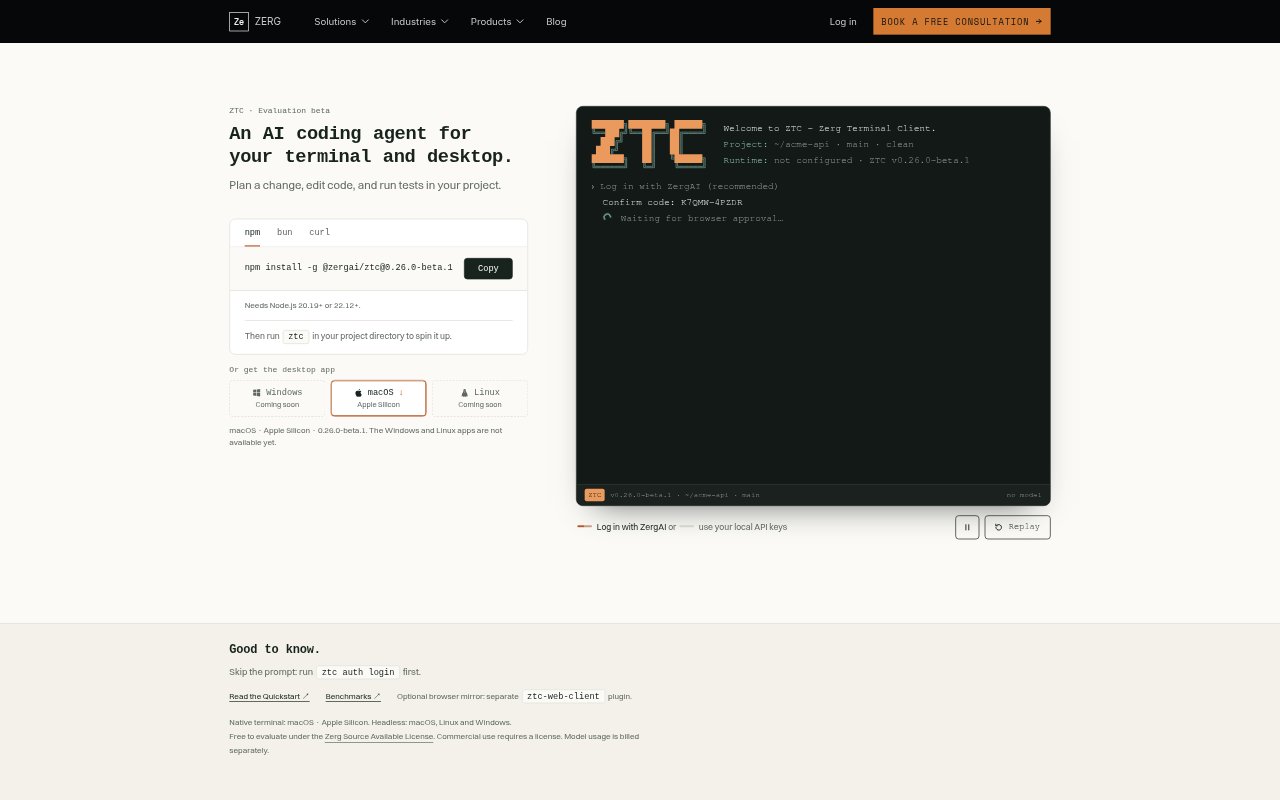
Zerg Client is an AI coding agent for developers working in a project from a terminal or desktop app. It helps plan a code change, edit project files, and run tests, with access through a Zerg sign-in or local API keys. The terminal client requires Node.js 20.19+ or 22.12+ and runs natively on macOS with Apple Silicon; headless use is supported on macOS, Linux, and Windows. The macOS desktop app supports Apple Silicon, and the product is in evaluation beta.
Zerg Client Features:
Change Planning: Use the agent to plan a code change before it edits files in the project.
Code Editing: Ask Zerg Client to make edits in the project you are working in.
Test Running: Run project tests as part of the coding workflow after making a change.
Terminal and Desktop: Choose between a terminal CLI and a desktop app, with the app currently available for macOS on Apple Silicon.
Model Access: Sign in with Zerg or use local API keys, with provider keys also configurable through Zerg Router.
Model Switching: Switch models from the terminal with the /model command.
Zerg Client Benefits:
Connected Workflow: Keeping planning, code edits, and test runs in one coding workflow can make it easier to follow a change from intent to verification.
Earlier Feedback: Running tests after edits gives developers a chance to spot problems before relying on the changed project.
Flexible Setup: Terminal and desktop options let developers choose a working style that fits their environment.
Model Choice: The ability to change models lets a developer adjust their choice without leaving the terminal workflow.
Credential Control: Using Zerg Router for provider keys can reduce the need to configure those credentials on each development machine.
Use Cases:
Scoped Code Change: Use it to plan and implement a specific change in an existing project, then run tests on the result.
Test After Editing: Bring it into a task where a developer wants to check whether edits pass the project's tests before moving on.
Terminal-Based Coding: Start Zerg Client from a project directory when the coding task is centered on terminal work.
Desktop Coding: Use the macOS desktop app for coding work on an Apple Silicon Mac instead of starting with the terminal CLI.
Headless Environment: Run the client headlessly on macOS, Linux, or Windows when a desktop app is not the chosen setup.